Empowering HR with Karya HRMS
Karya HRMS is engineered as a robust Human Resource Management System (HRMS) designed to centralize and automate critical HR functions throughout the entire employee lifecycle. This document serves as an advanced guide, transcending basic functionality to offer strategic perspectives and practical relevance for HR professionals. The system provides a unified platform that directly addresses the contemporary challenges faced by HR teams, particularly the need for modern tools to manage diverse aspects of employee journeys, from recruitment to offboarding.
The core value proposition of Karya HRMS lies in its ability to centralize HR data, automate routine administrative tasks, ensure stringent compliance with regulatory requirements, and deliver actionable data-driven intelligence. This integrated approach transforms HR from a purely administrative function into a strategic business partner within the organization. By consolidating essential processes such as payroll, time tracking, employee onboarding, performance reviews, and benefits administration into a single, cohesive system, Karya HRMS provides a comprehensive solution for effective human capital management. The following sections will meticulously detail each module of Karya HRMS, emphasizing its practical application, implications for regulatory adherence, and its overall contribution to enhancing HR efficiency and the broader employee experience.
Understanding the HRMS Landscape and Karya's Role
An HRMS represents a sophisticated software solution that integrates various human resources functions into a singular, unified system. Karya HRMS exemplifies this by offering a centralized view of crucial HR metrics and employee data in real-time, providing a dynamic snapshot of the workforce. This real-time capability is paramount for modern HR operations, enabling immediate access to critical information.
While the terms HRMS and HRIS (Human Resources Information System) are often used interchangeably, a distinction exists. HRMS platforms typically encompass a more comprehensive suite of features, extending beyond core HR functions to include advanced talent management tools. In contrast, HRIS often concentrates primarily on core administrative data management. Karya HRMS aligns with the broader HRMS definition, incorporating modules such as Talent Acquisition and Appraisal Management, which are indicative of a system designed for comprehensive talent lifecycle management.
The strategic importance of modern HRMS platforms cannot be overstated. They are indispensable for managing the entire employee lifecycle, from the initial stages of recruiting and onboarding through ongoing performance management, and finally, to the offboarding process. Karya HRMS is specifically designed to streamline HR operations and empower organizations to make data-driven decisions, thereby enhancing overall organizational agility and responsiveness.
Key Benefits for Modern HR Operations
The implementation of a robust HRMS like Karya offers multifaceted benefits that significantly impact an organization's operational efficiency, compliance posture, and strategic capabilities:
- ● Operational Efficiency: Karya HRMS automates numerous routine tasks, substantially reducing manual workloads and accelerating approval processes across various HR functions. This automation minimizes the time spent on repetitive administrative activities, allowing HR professionals to focus on more strategic initiatives.
- ● Data Accuracy & Centralization: The system provides rapid access to securely backed-up and accurate employee data, ensuring that correct and updated information is consistently maintained. This centralization creates a single source of truth for all employee-related data, mitigating discrepancies and improving data reliability for critical decision-making.
- ● Enhanced Compliance: Karya HRMS plays a pivotal role in helping organizations ensure strict regulatory compliance with both government and corporate rules. By facilitating the maintenance of all required documents and ensuring records are consistently up-to-date, the system reduces the risk of non-compliance and associated penalties.
- ● Improved Employee Experience: An effectively implemented HRMS contributes directly to greater employee satisfaction and higher retention rates. By making HR processes accessible, simple, and enjoyable, the system fosters a positive interaction between employees and HR functions, which in turn enhances overall employee engagement and morale.
- ● Strategic Decision-Making: Through its robust reporting and analytics capabilities, Karya HRMS enables HR teams to effectively monitor workforce trends and make informed, data-driven decisions. This analytical capacity transforms HR from a support function into a strategic partner capable of providing actionable intelligence for business growth and development.
Real-time Insights into Data-Driven Decisions
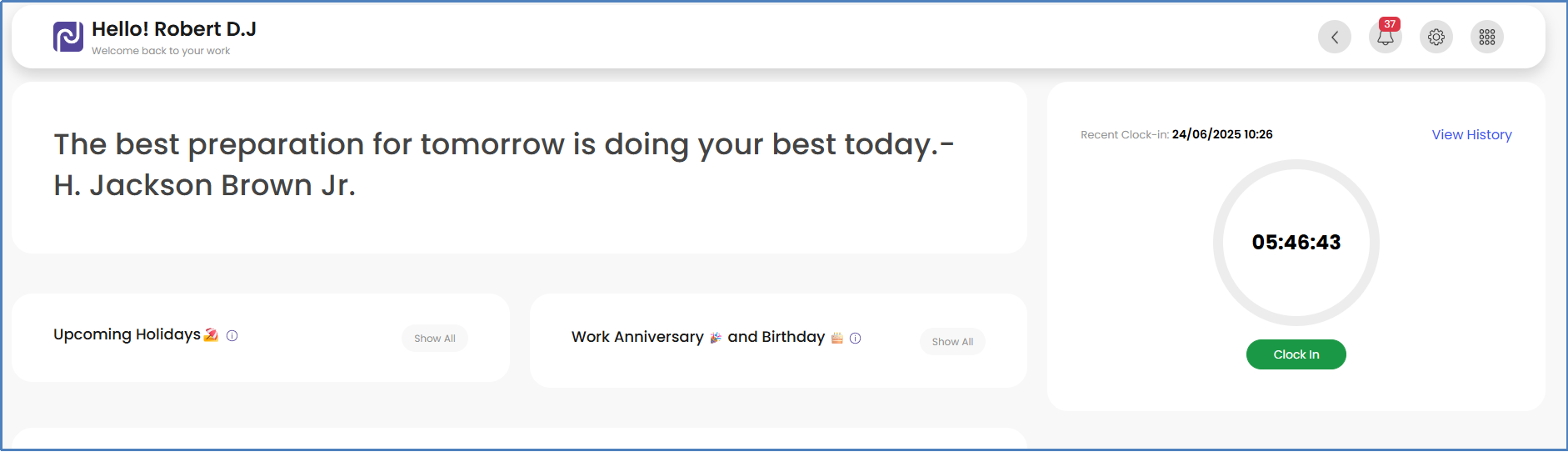
The Karya HRMS Dashboard serves as the central command center for HR professionals, offering a comprehensive overview of essential HR functions and employee data in real-time. This dynamic interface is critical for immediate situational awareness, allowing HR teams to quickly grasp the current state of their workforce. The dashboard effectively displays critical insights such as attendance records, current leave statuses, progress in ongoing hiring initiatives, and employee expense data. The integration of visual charts and quick-access widgets further facilitates the efficient monitoring of workforce trends, providing a clear and concise summary that supports agile decision-making.
Detailed Breakdown of Dashboard Widgets
The dashboard is composed of several key widgets, each designed to provide specific, actionable information:
-
● Overview:
This section prominently displays key employee statistics, including the total number of employees, active employees, individuals currently undergoing probation, and the count of pending onboarding processes. This immediate visibility of "employees on probation" and "pending onboarding" allows HR to proactively manage critical stages of the employee lifecycle. For instance, it enables timely initiation of probation reviews, ensures the successful completion of onboarding tasks, and helps identify any potential resource gaps or bottlenecks in the hiring pipeline. This proactive approach helps HR shift from merely reacting to problems to strategically planning for talent needs and development.

-
● Scheduler:
The Scheduler provides a visual timeline that organizes tasks, events, and resource allocations across various departments. It is instrumental in tracking employee shifts, monitoring project deadlines, managing maintenance schedules, and facilitating inventory planning. This feature promotes real-time coordination, enhances operational efficiency, and ensures the timely execution of business activities. The system offers tailored views: logged-in users can view their personal agenda, managers can access data for themselves and their direct reports, and administrators possess the capability to view all organizational data.

-
● Holidays:
This section lists all company-declared holidays for the year, encompassing national, festival, and optional holidays. It assists employees in planning their leaves effectively and ensures accurate attendance tracking. HR departments can also leverage this feature to manage and update holiday calendars across different office locations or departments, ensuring consistency and compliance. Logged-in users can view holidays specific to their assigned business unit, while administrators have access to holiday lists for all business units.

- ● Announcements: This dedicated section is designed for displaying important company-wide messages, such as policy updates, upcoming events, organizational achievements, or general HR notices. This feature is critical for fostering a transparent and engaged organizational culture. The timely and centralized communication of policy changes, events, or HR notices directly impacts employee awareness and ensures alignment with organizational objectives. This approach minimizes information silos, contributes significantly to greater employee engagement, and is a key factor in improving retention and overall productivity. Effective communication through this channel builds trust and ensures that employees feel consistently informed and valued.
- ● Leaves: The Leaves section offers a comprehensive overview of an employee’s leave status, including their available leave balance, upcoming approved leaves, and historical leave data. It empowers users to apply for leave, track the status of their approvals, and easily access company leave policies. This functionality streamlines the entire leave management process and ensures transparency for both employees and HR personnel.
-
● To-Do:
This widget provides an overview of an employee's daily tasks, specifically those assigned to or created by the employee, and which are not directly linked to larger projects. Logged-in users can view their assigned or created To-Dos, and the data can be displayed in either a grid or card view, based on user preference. Managers can view their own tasks and those of their reportees, while administrators have visibility of all user data across the organization.

-
● Time Tracker:
This section displays all tasks and To-Dos assigned to the logged-in user, providing a convenient interface for starting and stopping time tracking against specific activities.

- ● Help: This feature serves as a direct link, redirecting employees to the Karya knowledge base for self-service support and information.
- ● Notifications: This section displays dashboard notifications and reminders that have been set by the organization for the logged-in user, ensuring timely alerts for important updates or actions.
- ● Settings: The Settings section encompasses all the necessary configurations required before utilizing Karya HRMS features. Depending on the organization's industry, users can define access permissions, roles, departments, skills, and other relevant parameters.
- ● Menu: This is the standard hamburger menu icon that provides access to all the modules available within the Karya system.
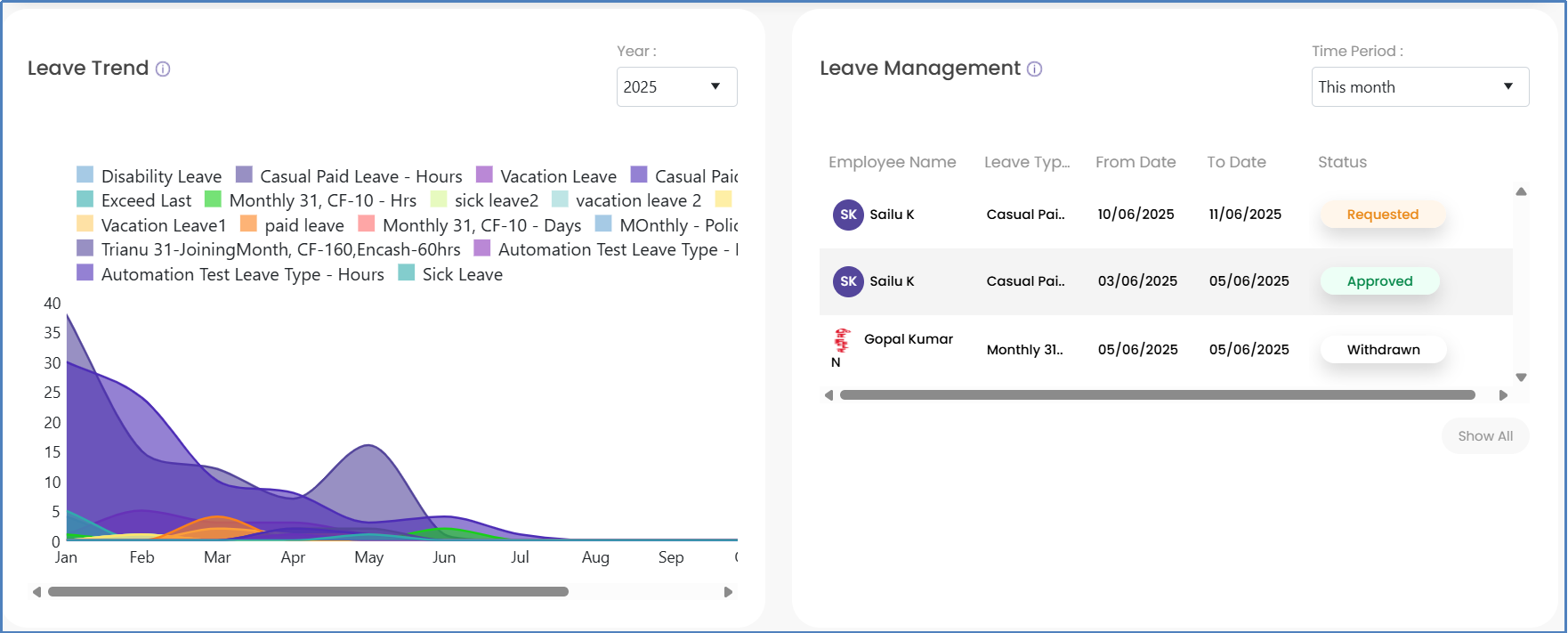
- ● Leave Trend: This graphical representation displays data on the types of leaves taken by users within the current year. Logged-in employees can view their approved leave types. Managers have the capability to view their own leave data as well as that of their reportees, while administrators can access leave trend data for all users across the organization.
-
● Leave Management (Dashboard Component):
This section presents the logged-in user's leave data for the current month. Employees can see their specific leave types, dates, and the status of their leave requests for the current month. Managers can view their own leaves and those of their reportees, and administrators have access to all user leave data within the organization.
- ● New Hires: This section is universally accessible to all users and provides data on new hires for both the current and previous months.
-
● Clock-in/out hours:
This graph illustrates the hours worked by the logged-in user for the current and previous weeks. Employees can view their total worked hours per week. Managers can access their own working hours and those of their reportees, and administrators can view working hours data for all users in the organization.

- Reportees: This section specifically displays the clock-in data for an employee's direct reportees and is only visible if the logged-in user has reporting staff.
-
Employee Expenses:
This section features a pie chart visualizing expenses incurred and applied for reimbursement within the current month. Logged-in employees can view only their own expenses. Managers have visibility into their expenses and those of their reportees, while administrators can access all user expense reimbursement data across the organization.

Overview & User Access Matrix
This table provides a concise, at-a-glance reference for HR professionals, clarifying the purpose of each dashboard component and, crucially, detailing which user roles possess visibility or specific access to the data. This structured presentation enhances clarity regarding data governance and access control within the HRMS. HR professionals frequently require a clear understanding of data visibility for reasons of compliance, privacy, and operational efficiency. A matrix that explicitly delineates "who sees what" for components like the Scheduler, Holidays, To-Do, Leave Trend, Leave Management, Clock-in/out hours, and Employee Expenses helps prevent confusion, supports user training, and ensures that data security protocols are implicitly understood by all users. Such a matrix also proven invaluable for auditing access permissions.
| Dashboard Component | Primary Function/Information Displayed | Employee Access | Manager Access | Admin Access |
| Overview | Total, active, probation, pending onboarding employees | View | View | View |
| Scheduler | Visual timeline of tasks, events, resource allocations | View Own Agenda | View Own & Reportees | View All |
| Holidays | Company-declared holidays | View by Business Unit | View by Business Unit | View All |
| Announcements | Company-wide messages, updates | View | View | View |
| Leaves | Leave status, balance, history | View & Apply | View & Approve | View & Approve |
| To-Do | Daily tasks (assigned/created) | View Own | View Own & Reportees | View All |
| Time Tracker | Tasks/To-Dos for time tracking | View & Track | View & Track | View & Track |
| Help | Redirects to Knowledge Base | Access | Access | Access |
| Notifications | Dashboard alerts, reminders | View | View | View |
| Settings | System configurations (roles, access) | Configured by Admin | Configured by Admin | Manage |
| Menu | Access to all Karya modules | Access | Access | Access |
| Leave Trend | Graph of leave types taken (current year) | View Approved Own | View Own & Reportees | View All |
| Leave Management | Current month's leave data | View Own | View Own & Reportees | View All |
| New Hires | New hires (current & previous months) | View | View | View |
| Clock-in/out hours | Graph of hours worked (current & previous weeks) | View Own | View Own & Reportees | View All |
| Reportees | Clock-in data for direct reports | N/A | View Reportees | View All |
| Employee Expenses | Pie chart of expenses/reimbursements | View Own | View Own & Reportees | View All |
Earning Types and Statutory Components: Compliance and Payroll Efficiency
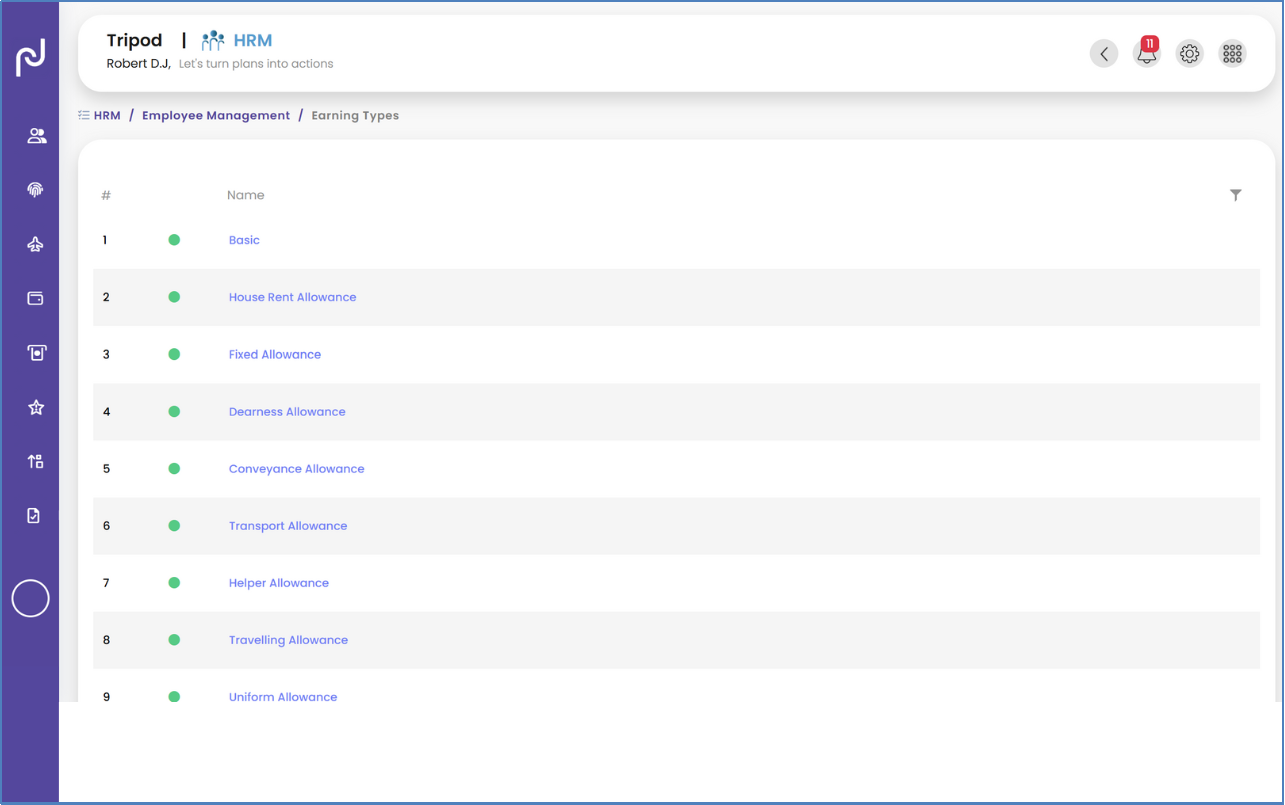
Karya HRMS provides a comprehensive listing of all earning types and statutory components, which can be meticulously managed and optimized to align with specific organizational requirements. Earning types refer to the various categories through which employees receive compensation, such as Basic Salary, House Rent Allowance (HRA), and Conveyance allowance. These are fundamental to effective payroll management, transparent salary structuring, and ensuring full compliance with taxation and labor laws. Statutory components, conversely, denote mandatory deductions and contributions that employers are legally obligated to provide or subtract from employee salaries, including Provident Fund (PF), Employee State Insurance (ESI), and Professional Tax (PT).
The ability to centralize the management of these components within the HRMS is foundational for achieving payroll accuracy and maintaining regulatory compliance, thereby significantly minimizing potential legal and financial risks. The system ensures that all mandatory deductions and contributions are correctly applied, which directly supports adherence to regulatory frameworks and reduces the manual effort and inherent risks associated with traditional payroll processing.
- Best Practice: Ensuring Payroll Accuracy and Compliance To maintain payroll accuracy and compliance, organizations should:
- ● Maintain Confidentiality & Secure Access: Limit access to sensitive payroll data to authorized personnel, use encryption, and implement strong password policies.2
- ● Follow Legal Record Retention Guidelines: Retain payroll records for the duration required by federal and state laws (e.g., FLSA requires 3 years).2
- ● Automate for Speed & Accuracy: Leverage payroll software to automate recordkeeping, approvals, and tax deposits, reducing manual errors and ensuring timely payments.2
- ● Regularly Audit: Conduct regular audits of payroll data to detect discrepancies and ensure compliance with wage and hour regulations.2
- Steps to Manage Earning Types & Statutory Deductions:
- 1. Go to HRM from the Main Menu bar on the top right corner.
- 2. From the left menu bar, click on Employee Management.
- 3. From the dropdown menu, click on Earning Type as required.

Deductions: Pre-tax vs. Post-tax Implications
Deductions refer to amounts withheld or subtracted from an employee’s gross salary and are distinctly categorized into pre-tax and post-tax deductions.
- ● Pre-tax deductions: These are amounts removed from an employee’s gross salary before taxes are calculated. These deductions effectively reduce the employee's taxable income, resulting in a lower overall income tax liability. Common examples include contributions to retirement plans (like 40(k)), health insurance premiums, and commuter benefits.
- ● Post-tax deductions: These are applied after taxes have been calculated and deducted from the gross salary. These deductions do not reduce taxable income. Examples include union dues, wage garnishments, or payments for voluntary benefits such as life insurance not covered by a pre-tax plan.
Understanding and correctly applying the distinction between pre-tax and post-tax deductions is critical for optimizing employee net pay and ensuring precise tax compliance. Accurate management of these deductions ensures the organization adheres to all relevant tax laws, avoiding penalties, while simultaneously providing employees with accurate financial information, fostering trust and reducing queries related to pay slip discrepancies.
- Steps to Add Deductions:
- 1.Go to HRM from the Main Menu bar on the top right corner.
- 2.From the left menu bar, click on Employee Management.
- 3.From the dropdown menu, click on Deductions.

-
4.Click the add button to add all the deductions.

Salary Structure Groups: Streamlining Compensation Management
Karya HRMS facilitates the creation of salary structure groups, which enable organizations to define a consistent salary structure and apply it efficiently to a group of employees, thereby eliminating the need for individual setup for each employee. This feature is particularly valuable for scalable and equitable compensation management, supporting organizational growth and ensuring fairness across employee cohorts.
Manually setting salaries for each employee is inherently inefficient and prone to errors, especially in expanding organizations. Salary structure groups allow HR to apply consistent compensation frameworks, ensuring equity and significantly reducing administrative overhead. This capability directly supports robust salary structuring and facilitates efficient salary revisions without compromising fairness or compliance.
- Steps to Create Salary Setting Groups:
- 1. Go to HRM from the Main Menu bar on the top right corner.
- 2. From the left menu bar, click on Employee Management.
- 3. From the dropdown menu, click on Salary Setting Groups.

-
4.Here, you can create a group and assign employees to the Salary Structure group.

IT Declaration Settings & Approvals: Tax Compliance and Employee Support
The IT Declaration (Income Tax Declaration) module provides a structured process where employees submit details about their planned tax-saving investments and expenses to their employer at the beginning or during the financial year. This information is crucial for the employer to calculate accurate monthly Tax Deducted at Source (TDS) from employees’ salaries.
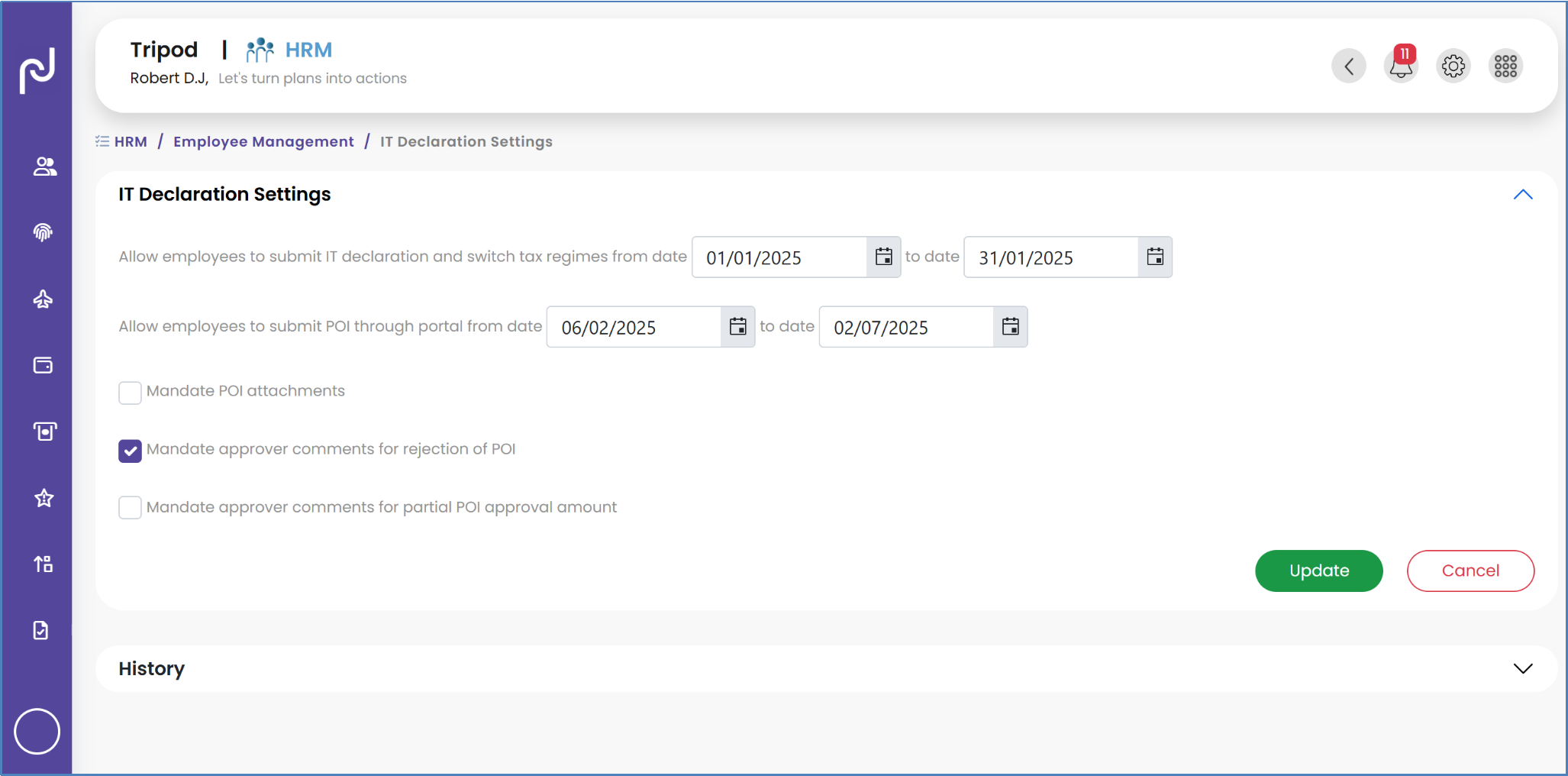
Within the IT Declaration Settings, organizations can define specific date ranges during which employees are permitted to submit their IT Declarations and alter their tax regimes. Furthermore, the system allows for mandating Proof of Investment (POI) attachments and approving comments on POI submissions. This module is crucial for proactive tax management and contributes significantly to employee financial well-being, reducing year-end burdens for both the organization and its employees. Allowing employees to declare investments and tax regimes upfront enables employers to calculate accurate monthly tax deductions, minimizing large tax liabilities for employees at year-end and reducing the administrative burden on HR and Finance for reconciliation. The system also supports direct download of Form 2BB and Form 6, enhancing employee self-service and compliance.
- Steps for HR/Admin to Approve IT Declarations:
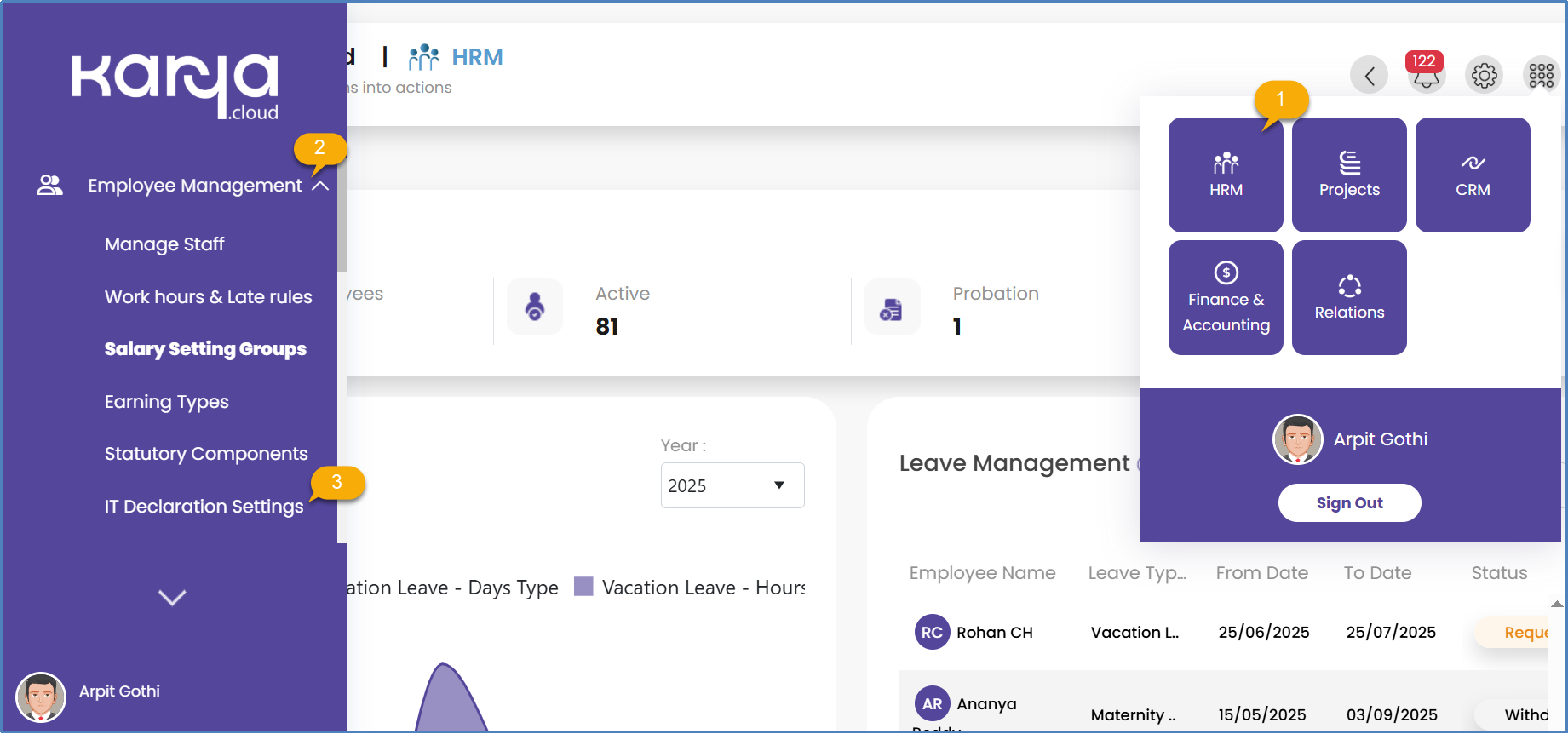
- 1. Go to HRM from the Main Menu bar on the top right corner.
- 2. From the left menu bar, click on Employee Management.
-
3. 3.From the dropdown menu, click on IT Declaration Settings.
-
4. Here, you can select the financial year, tax regime, and employee to approve the IT Declaration.
Work Hours & Late-Coming Rules: Automating Attendance Policies
Karya HRMS enables the automation of company work policies regarding work hours and late-coming rules, eliminating the need for manual observation for each employee. Automating these rules ensures consistent policy enforcement and the collection of accurate attendance data, which is vital for both payroll processing and compliance with labor regulations.
Manual tracking of work hours and late arrivals is susceptible to human error and inconsistencies. Automation ensures that policies are applied uniformly across the organization, minimizing disputes and administrative effort. Accurate attendance data is a statutory requirement, feeding directly into payroll processing and the generation of various statutory reports, making this a critical feature for both compliance and operational efficiency.
Best Practice: Preventing Time Theft and Ensuring Accuracy
To prevent time theft and ensure accurate attendance:
- ● Establish Clear Policies: Implement a clear time theft policy outlining consequences and expectations.4
- ● Automate Time Collection: Replace manual tracking with digital clocks or mobile apps for exact time recording.5
- ● Use Geofencing: Create designated work zones and limit clock access outside these areas to ensure employees are physically present.5
- ● Enable Audit Trails: Time tracking software should log all edits and changes, including who made them and when.5
- ● Regularly Review Reports: Cross-check timesheets with project progress, location data, or shift schedules to confirm consistency.5
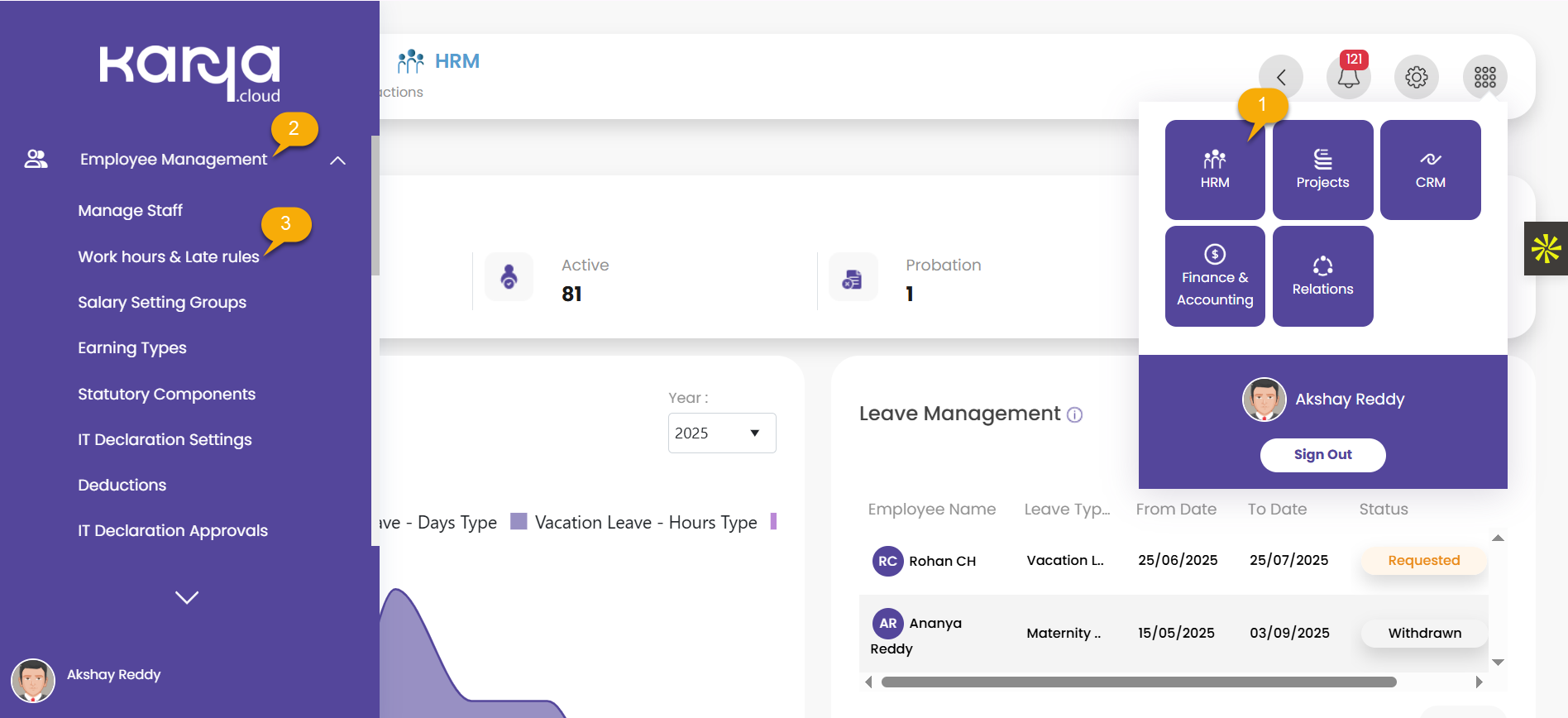
- Steps to Set Work Hours and Late-Coming Rules:
- 1. Go to HRM from the Main Menu bar on the top right corner.
- 2. From the left menu bar, click on Employee Management.
-
3. From the dropdown menu, click on Work hours & Late rules.
-
4. Here, you can set work hours & late rules for your organization.

Managing Staff & Employee Profiles: Centralized Data Hub
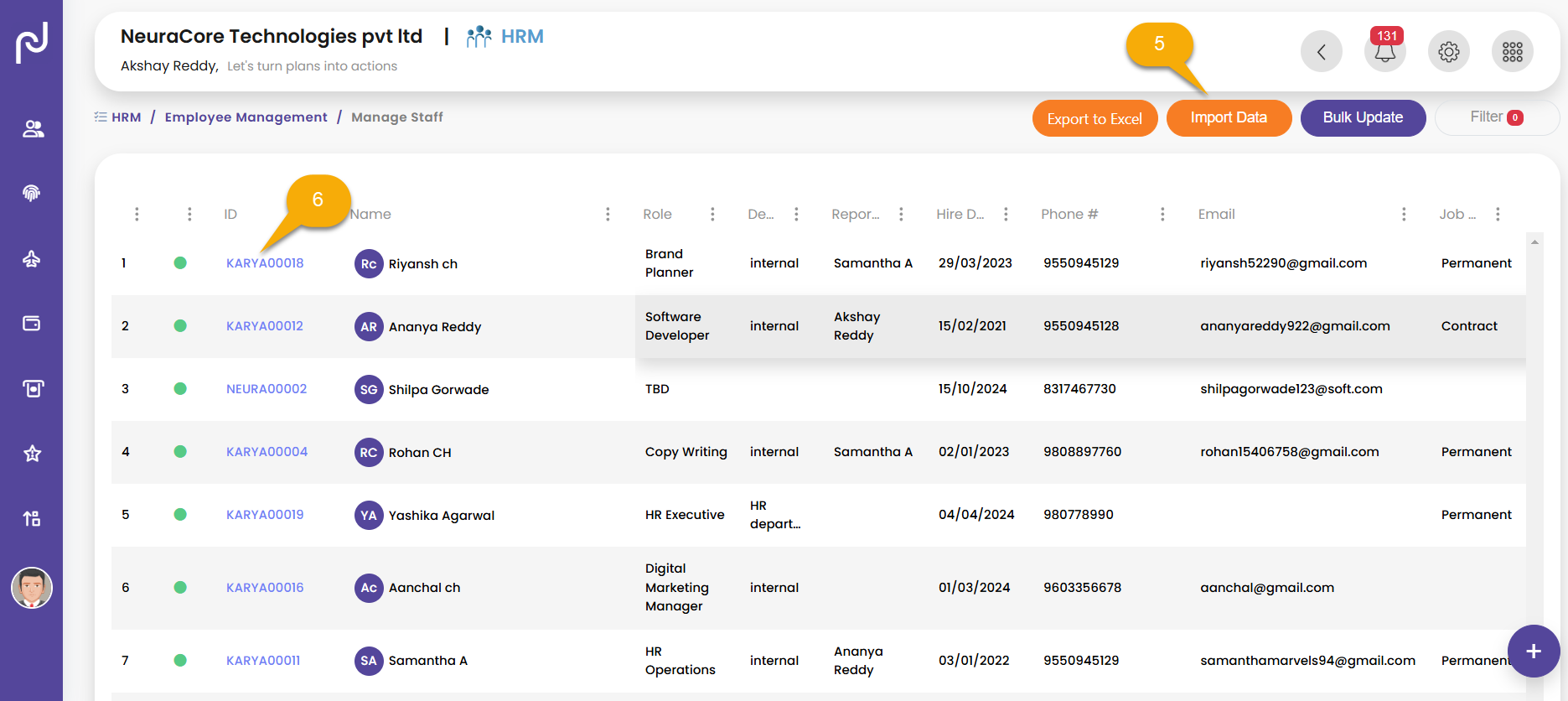
The "Manage Staff" page in Karya HRMS provides authorized users with the ability to add new employees and gain a detailed overview of the entire employee directory. This functionality extends to performing actions such as adding and updating individual employee details, as well as managing employee information in bulk. Clicking on a specific employee ID reveals comprehensive employee information and offers various options for further actions.
A centralized employee profile within Karya HRMS is not merely a data repository; it functions as a strategic asset for ensuring compliance, mitigating risks, and delivering a personalized employee experience. Storing diverse data, including personal information, employment details, compensation and benefits, documents, and an audit trail, in one secure location ensures that all required documents are present and records are up to date. This capability facilitates regulatory compliance and provides a single, reliable source of truth for HR decisions, as many organizational decisions by managers and management are predicated on this data. Furthermore, easy access to comprehensive data empowers HR to provide tailored support and insights, significantly enhancing the overall employee experience. The integrated audit trail further reduces risk by meticulously tracking changes to sensitive information.
- Steps to Manage Staff and Employee Profiles:
- 1. Click on the Menu icon by navigating to the top right corner.
- 2. Click on the HRM module.
-
3. Click on Manage Staff from the left navigation. A list of employees will be displayed.
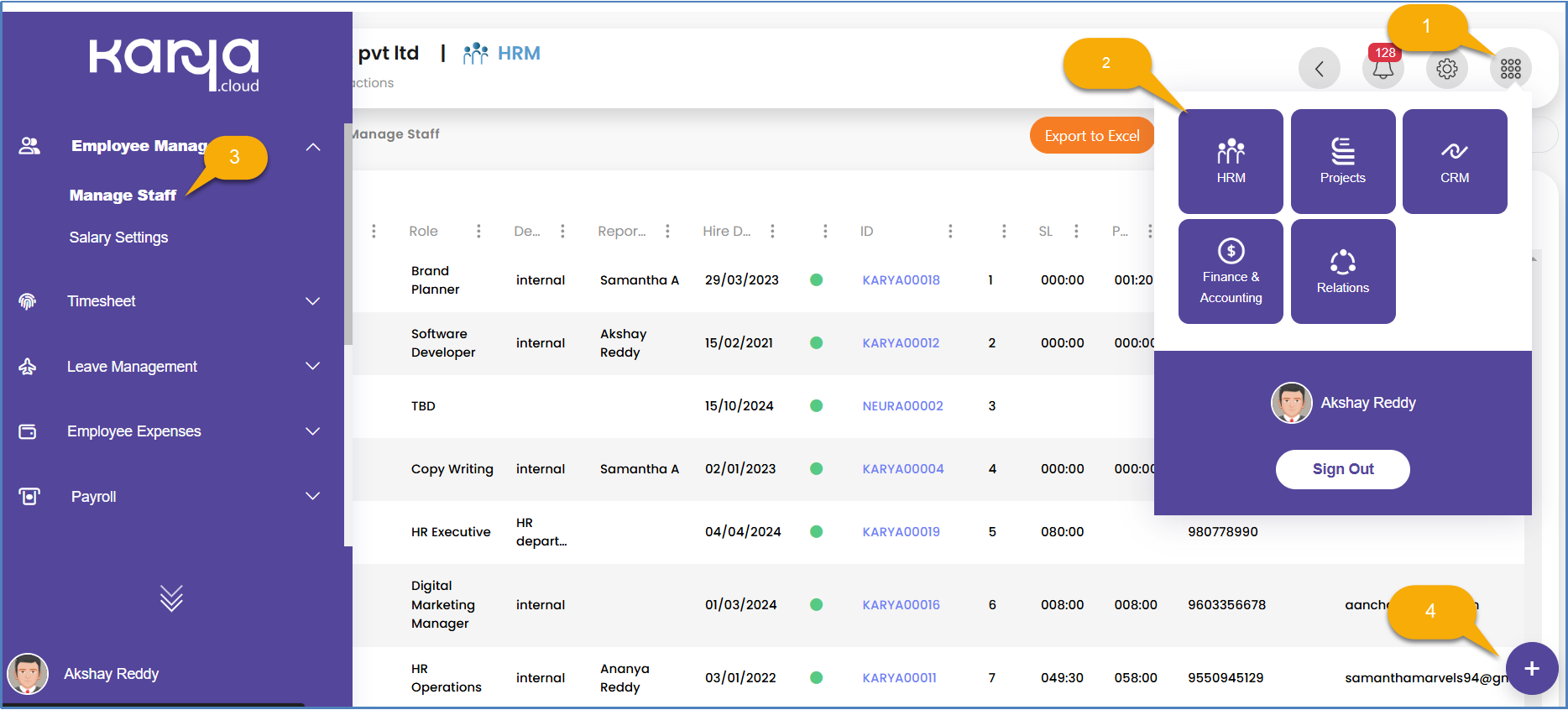
- 4. To add a new employee, click on the Add button located at the bottom right corner.
- 5. After clicking Add, users will see multiple cards including Employee Details, Profile Details, Address, and Additional Details.
- 6. Add the required details to the cards and click on Save.
- 7. To import employee data in bulk, click on the Import Data button. Download the excel template, fill in the employee details, and re-upload it.
-
8. Clicking on an Employee ID allows users to update and manage individual employee profiles. Clicking on an Employee ID displays cards such as Profile Details, Hiring Details, Documents, Settings, Leave Summary, Earnings, Advances, Audit Trail, and View More.
Deep Dive into Profile Details
The Profile Details card within an employee's profile is structured with multiple tabs, each dedicated to comprehensive employee information:
- ● Primary Details Tab: This section contains the fundamental details of employees. It allows for the assignment of more than one leave manager to an employee, ensuring that leave notifications are sent to all relevant managers, including reporting managers. Permissions for employees to edit their own profile can also be managed here via a toggle button.
- ● Access & Security Tab: In this section, users can view and update an employee's access group, IP restriction, and location restriction. It also provides the option to enable or disable web clock-in functionality for the employee.
- ● Identification Details Tab: This tab stores crucial identification details such as PF number, ESIC number, UAN number, and Aadhaar number.
- ● Contact Details Tab: This section contains essential contact information, including employee email, phone number, and emergency contact details.
- ● Address Tab: This tab is dedicated to storing the employee's communication address details.
- ● Bank Account Details Tab: Employee bank details are stored here, which are essential for payroll processing, direct bank transfers, and display on pay slips.
- ● Relations Tab: This section captures details of employee relations, such as father's name, mother's name, spouse's name, and nominee's name.
-
○ Screenshot: (Image of Employee Profile Details section)

Hiring Details: Tracking Career Progression
The Hiring Details section within an employee's profile showcases all roles, designations, and the overall career progression of the employee within the company. Each accordion within this section represents a distinct role held by the employee. A critical function of this section is the ability to update the last working date if an employee resigns or is terminated from the company. Upon the entry of the last working day, the employee’s access to Karya HRMS is automatically revoked, and their status changes to inactive. This functionality is an integral part of effective "Exit Management," ensuring a smooth offboarding process and maintaining data integrity post-employment.
Best Practice: Smooth Offboarding and Knowledge Transfer
For a smooth offboarding process:
- ● Create a Clear Process: Have a well-documented offboarding checklist covering legal paperwork, internal processes, and stakeholder alignment.6
- ● Focus on Knowledge Transfer: Ensure departing employees document key responsibilities, projects, and processes through structured handovers.6 This is critical for senior-level employees with institutional knowledge.7
- ● Handle Security Efficiently: Change shared passwords, recover company property (laptops, phones), and revoke access to company systems (emails, documents, software) promptly.6
- ● Conduct Insightful Exit Interviews: Use exit interviews to gather candid feedback on company culture, leadership, and practices, which can inspire real change.6
- ● Screenshot: (Image of Hiring Details section)

Document Management: Secure Storage and Onboarding Automation
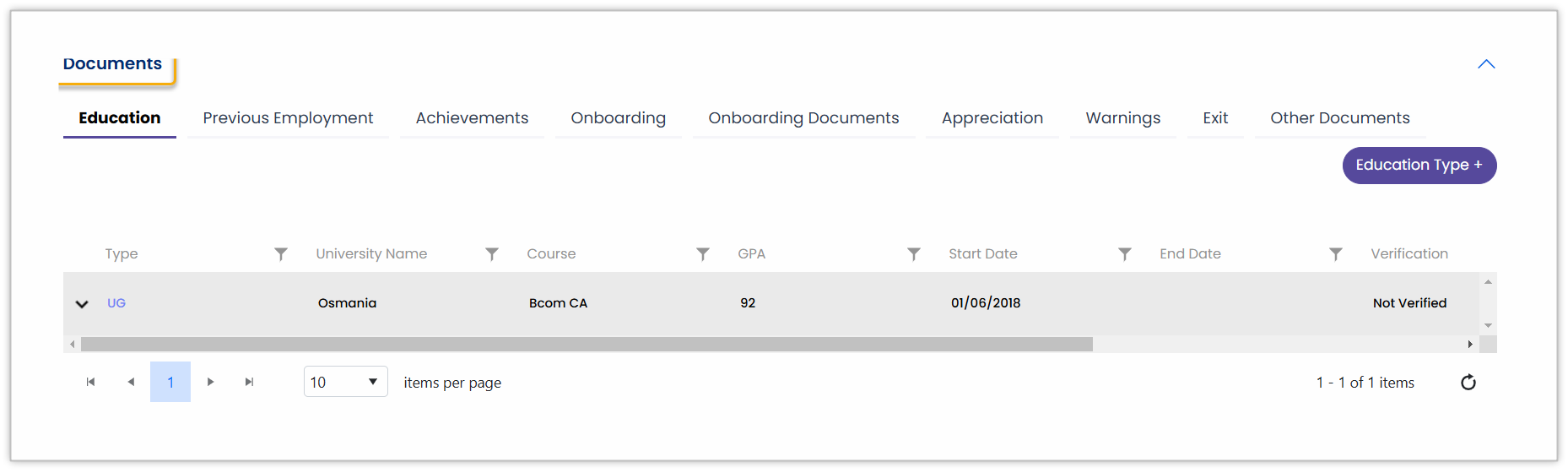
The Documents card displays a list of all documents required by the company from an employee. Additionally, employees can view their appreciations, warnings, and other official documents issued by the company in this section.
The onboarding process for new hires can be seamlessly initiated from this card by clicking the "Send On-boarding Documents" button. This action triggers an email containing a link for the new employee to upload the requested documents. Once the employee uploads and submits the documents, HR can review them on the onboarding tab. HR has the authority to approve or reject these documents; if rejected, an email is automatically sent again, requesting the re-upload of the specified documents. This feature significantly streamlines onboarding compliance and reduces administrative burden. Automating the collection and management of onboarding documents through email links and approval workflows directly addresses the need to eliminate wasted time and automate tasks within HR. This ensures that every personnel file contains all required documents from day one, enhancing regulatory compliance and providing a centralized, secure vault for document storage. The ability to view appreciations and warnings also supports comprehensive employee record-keeping for performance and disciplinary actions.
Best Practice: Secure HR Document Management
For secure and efficient HR document management:
- ● Go Digital: Digitize all documents to avoid physical risks (floods, fires, misplacement) and enable digital protective measures like encryption and access controls.8
- ● Sort by Sensitivity: Assign sensitivity ratings to documents and apply corresponding access permissions to ensure only authorized personnel can view sensitive information.8
- ● Encrypt Sensitive Data: Encrypt documents both in storage and when shared to protect sensitive information even if systems are infiltrated.8
- ● Ensure Regulatory Compliance: Regularly review data collection practices, identify and eliminate unnecessary data, and establish clear data retention and deletion policies to comply with laws like ADA, FCRA, and GINA.9
-
● Implement Audit Tracking: Utilize systems that provide detailed document history reports and audit tracking to ensure accountability and transparency.
Employee Profile Settings (Shift, Timesheet, Salary, Payroll)
The Settings card within the employee profile comprises multiple tabs for configuring employee-specific parameters:
- ● Shift Settings Tab: Here, HR personnel can add and update shifts for employees. It is important to note that employees cannot be assigned to multiple shifts concurrently. Furthermore, HR cannot modify an employee's shift if a timesheet has already been filled for the period between the shift start and end dates.
- ● Timesheet Settings Tab: This tab allows HR to add and update the timesheet setting group for employees. Similar to shift settings, an employee cannot be part of multiple timesheet setting groups simultaneously.
- ● Salary Settings Tab: HR can utilize this tab to add and update the salary setting group for employees. An employee can only be assigned to one salary setting group at a time.
-
● Payroll Setting Tab: This section enables HR to add and update the payroll setting group for employees, ensuring that an employee is not assigned to multiple payrolls setting groups concurrently.

Leave Summary: Transparent Leave Balances
The Leave Summary section in the employee profile provides a clear overview across three distinct tabs :
- ● Summary: This tab displays the total leaves available in the employee's leave bucket.
- ● Customize Balance: This feature allows HR to manually add or deduct balance from an employee's available leaves. This specific functionality is not visible to the employee when they log in.
- ● Leave Encashment Balance: This tab indicates the number of leaves available for encashment. Providing employees with clear visibility into their available leave balance and leave encashment balance reduces ambiguities and minimizes queries directed to HR. This transparency aligns with the objective of ensuring clarity for both employees and HR, contributing to a positive employee experience by granting them control and understanding over their entitlements.
- ● Screenshot: (Image of Leave Summary section)

Earnings: Compensation, Investments, and Pay slips
Earnings refer to the total compensation an employer agrees to pay an employee, typically expressed as a fixed amount on a regular basis (such as monthly or annually). This encompasses various components, including the basic salary, allowances, bonuses, benefits, and other forms of compensation. The Earnings card within the employee profile consolidates all data related to employee compensation, benefits, investments and savings, compliances, forms, and pay slips.
- ● Salary Tab: This tab details the Cost to Company (CTC) for employees. Every time the salary is appraised or reviewed, a new row is added with an effective date, allowing for a historical record of compensation changes. New salary details can also be added from here. Employees are restricted to viewing this data only.
- ● Investments Tab: This tab stores data concerning employees’ savings, investments, and chosen tax regimes, which are used to calculate Tax Deducted at Source (TDS). Employees can add their investments under available sections, submit proofs for these investments, and select their preferred tax regimes. Tax calculations and deductions are then performed according to the selected regime. Form 2BB can also be downloaded from this section.
-
● Forms and pay slips Tab: Here, employees can download their payslips once payroll has been processed. Form 6 and Form 2BB are also available for download. Employees have the option to upload their signed Form 2BB, and Form 6 from Traces can be downloaded directly through the system. It is important to note that while HR can edit earnings at any time, employees can only add investments and Proof of Investment (POI) within a specific time period defined in the company settings; after this period, only HR can modify the data.

Advances: Loan Management and Repayment Tracking
The Advances section displays employee loans, their repayment status, and the current loan balance. This section is not editable by employees. If an employee consents to having loan repayments deducted directly from their payroll, the data in this section automatically updates after each payroll cycle, reflecting the current outstanding balance. This feature provides transparent and automated loan management, reducing the need for manual reconciliation and improving financial clarity for both HR and employees. Manual tracking of employee loans and repayments is time-consuming and prone to errors. Automating updates after payroll ensures an accurate loan balance and significantly reduces administrative overhead. This transparency builds trust with employees regarding their financial obligations and simplifies financial reporting for HR.

Audit Trail: Ensuring Data Integrity and Accountability
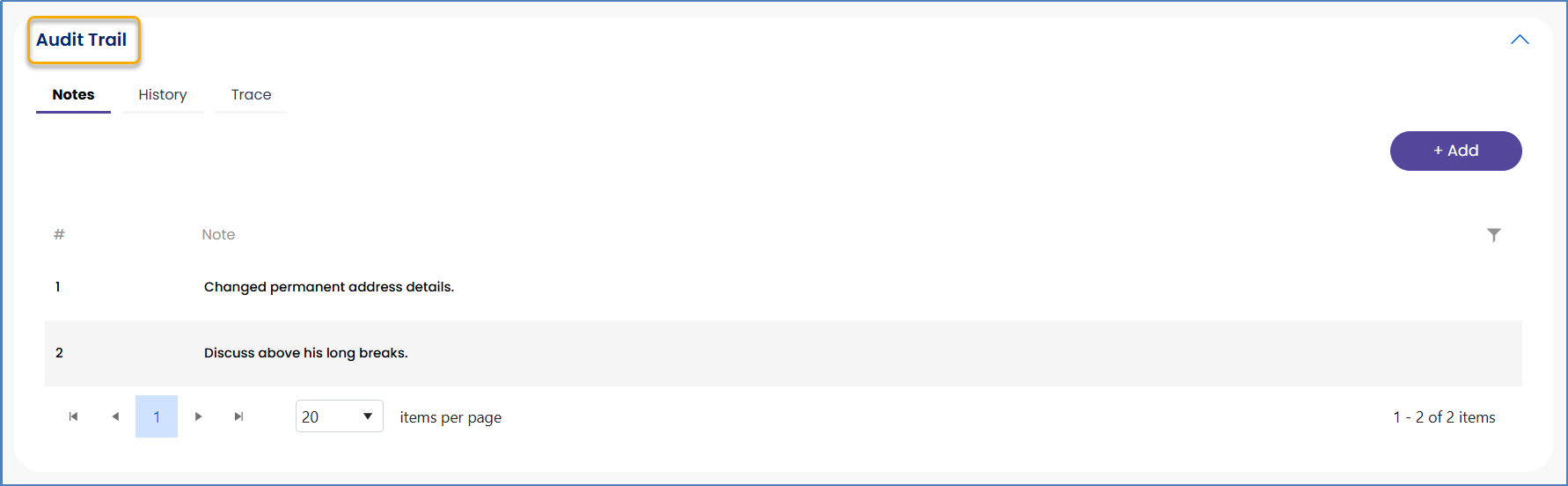
The Audit Trail within the employee profile is segmented into three tabs:
- ● Notes: This tab is for any short messages or reminders pertaining to the specific employee.
- ● History: This section records the history of all updates and modifications made to an employee's profile.
-
● Trace: This critical tab displays any changes made to sensitive information, such as compensation details or leave balances. The audit trail is a critical tool for maintaining data integrity, ensuring compliance with regulations, and facilitating dispute resolution. Tracking changes to sensitive information provides an immutable record of modifications, which is essential for thorough audits, ensuring regulatory compliance, and providing a clear history in case of discrepancies or legal challenges. This feature fosters accountability and transparency in HR data management.
View More: Integrated Project, Appraisal, and Timesheet Data
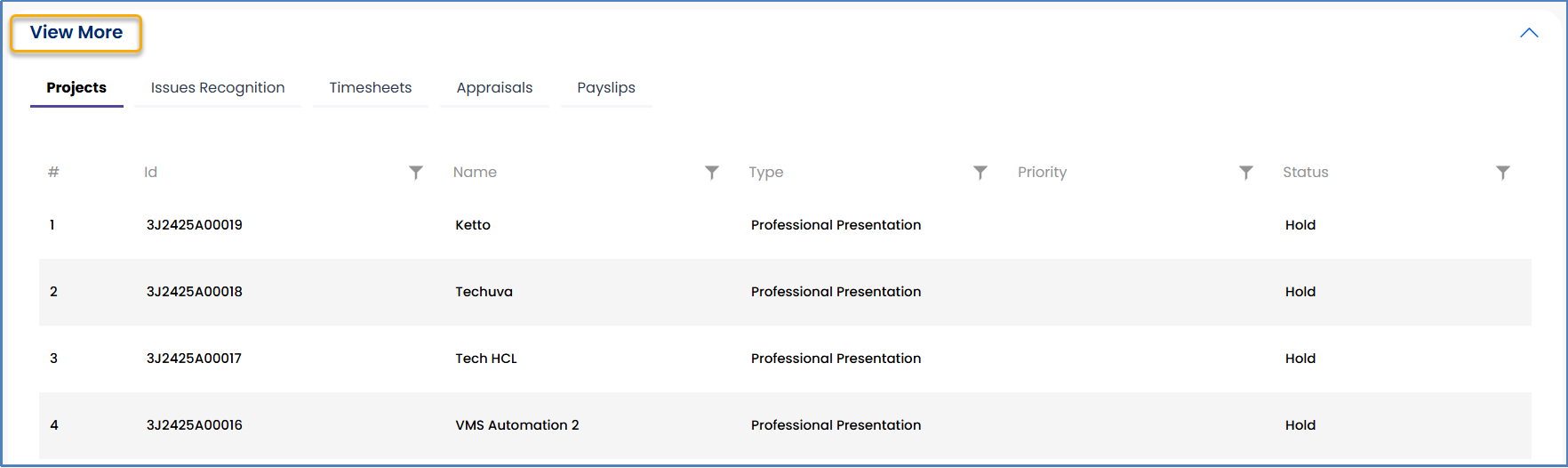
The "View More" section consolidates various types of information related to an employee's projects, appraisals, time sheets, and pay slips. Both employees and HR personnel have view-only access to this data, providing a centralized point for accessing comprehensive performance and financial records.
Employee Profile Data Fields
This table offers a structured overview of the comprehensive data points collected and managed within each employee's profile. It assists HR professionals in quickly identifying where specific information is stored and understanding its relevance for various HR processes, such as compliance, payroll, and emergency contact management. A clear breakdown of profile details by tab helps in comprehending the data architecture. This is crucial for adhering to data privacy and security policies, and for ensuring that correct and updated employee information is consistently maintained. It also serves as an invaluable aid in training new HR staff on proper data entry and retrieval procedures.
| Profile Tab Name | Key Information Stored | HR Relevance/Purpose |
| Primary Details | Basic employee info, leave managers, profile edit permissions | Core employee record, leave workflow, self-service enablement |
| Access & Security | Access group, IP/location restrictions, web clock-in allowance | System security, attendance control, data access management |
| Identification Details | PF, ESIC, UAN, Aadhaar numbers | Statutory compliance, legal identification |
| Contact Details | Email, phone, emergency contacts | Communication, emergency response |
| Address | Communication address | Correspondence, statutory compliance (e.g., tax jurisdiction) |
| Bank Account Details | Bank name, account number, IFSC code | Payroll processing, direct deposit, financial compliance |
| Relations | Father, mother, spouse, nominee names | Emergency contacts, nominee details for benefits, legal compliance |
| Hiring Details | Roles, designations, career growth, last working date | Career progression tracking, offboarding, historical employment record |
| Documents | Required documents, appreciations, warnings | Compliance, legal record-keeping, onboarding automation, performance history |
| Settings | Shift, Timesheet, Salary, Payroll setting groups | Employee-specific policy application, operational configuration |
| Leave Summary | Available, customized, encashment leave balances | Leave management, employee entitlements, HR adjustments |
| Earnings | CTC, investments, tax regimes, pay slips | Compensation management, tax compliance, financial record-keeping |
| Advances | Employee loans, repayments, loan balance | Financial transparency, automated loan management |
| Audit Trail | Notes, profile update history, sensitive data changes | Data integrity, accountability, compliance audits, dispute resolution |
| View More | Projects, appraisals, timesheets, pay slips | Comprehensive performance & financial overview |
Web and Mobile Access
Implementing geo-location restrictions for employee clock-ins and clock-outs is an effective strategy to ensure accurate time tracking and prevent time theft.
By utilizing GPS technology and geofencing, businesses can define virtual boundaries around work locations, allowing employees to clock in or out only when they are physically within these designated areas.
Here is a step-by-step process to set geo-location restrictions:
1. Go to Settings from the top right corner
2. Go to GPS Locations from Access & Security section

3. Click on add to set Geo-location and apply to employees accordingly

Geo-location Restrictions: Enhancing Time Tracking Integrity
The implementation of geo-location restrictions, leveraging GPS technology and geofencing capabilities, is a highly effective strategy to ensure accurate time tracking and to prevent unauthorized time entries or potential time theft. This system enables businesses to define virtual boundaries around specific work locations, thereby allowing employees to clock in or out only when they are physically present within these designated areas. This capability elevates time tracking from a simple record-keeping function to a robust tool for compliance, cost control, and accountability.
The explicit focus on preventing time theft and ensuring physical presence within designated areas highlights the significant financial and ethical implications of accurate timekeeping. Precise time tracking directly influences payroll accuracy, project billing, and adherence to labor laws. This feature significantly reduces discrepancies, potential fraud, and ensures fair compensation based on actual work performed, thereby contributing to overall organizational integrity.
- Steps to Set Geo-location Restrictions:
- 1. Go to Settings from the top right corner.
- ○Screenshot: (Image showing navigation to Settings icon)
- 2. Go to GPS Locations from the Access & Security section.
- 3. Click on the add button to set Geo-location and apply to employees accordingly.


Tracking Productivity and Project Hours
A timesheet within Karya HRMS serves as a comprehensive record used by organizations to track the number of hours employees dedicate to various tasks or projects over a specific period. This documentation is critical for accurate payroll processing, precise client invoicing, effective monitoring of employee productivity, and ensuring full compliance with labor laws.
Adding Timesheet Setting Groups
Organizations can establish timesheet setting groups to streamline the application of timesheet rules and configurations across different employee cohorts. This simplifies management and ensures consistency in time tracking policies.
- Steps to Add Timesheet Setting Groups:
- 1. Go to HRM from the Main Menu bar on the top right corner.
- 2. From the left menu bar, click on Timesheet.
- 3. From the dropdown menu, click on Timesheet Settings Groups.
- ○Screenshot: (Image showing navigation to Timesheet Settings Groups)
- 4. Here, you can add time sheet settings groups.


Approval Workflows (Reviewer, HR/Admin)
Karya HRMS offers flexible approval authority for timesheets, allowing organizations to choose between a simple one-step final approval by a designated reviewer or a more structured two-step process. The two-step process requires initial approval from the reviewer, followed by a final approval from an Administrator or HR personnel. These flexible timesheet approval workflows support organizational agility and accountability, ensuring timely and accurate project costing and payroll. The option for one-step versus two-step approval allows organizations to tailor the process to their specific governance and control requirements, accommodating diverse organizational structures and risk appetites. Accurate timesheets are fundamental for invoicing clients, monitoring employee productivity, and ensuring compliance with labor laws, directly impacting project profitability and legal adherence.
- Steps for a Reviewer to Approve Timesheets:
- 1. Go to HRM from the Main Menu bar on the top right corner.
- 2. From the left menu bar, click on Timesheet.
- 3. From the dropdown menu, go to My Timesheet.
- 4. Click on the Status dropdown and go to “Review Pending”.


- Steps for HR/Admin to Approve Timesheets:
- 1. Go to HRM from the Main Menu bar on the top right corner.
- 2. From the left menu bar, click on Timesheet.
- 3. From the dropdown menu, go to Manage Timesheet.
- 4. Select “Review Pending” from the status dropdown.


Manage Timesheets vs. Bulk Approval: Efficiency Gains
Karya HRMS differentiates between "Manage Timesheets" and "Bulk Approval" to cater to varying scales of approval needs. "Manage Timesheets" allows HR/Admins to view and approve timesheets on a weekly basis. Conversely, "Bulk Approval" provides the capability for HR/Admins to view and approve timesheets on either a weekly or monthly basis, offering greater flexibility for larger volumes. This distinction offers scalable efficiency for HR operations, particularly in large organizations or during peak payroll periods. Processing timesheets individually for a large workforce can be extremely time-consuming. The "Bulk Approval" feature significantly reduces administrative overhead by enabling HR/Admins to approve multiple timesheets simultaneously, whether weekly or monthly. This directly contributes to eliminating wasted time and automating various tasks by leveraging workflows, thereby freeing up valuable HR time for more strategic initiatives. Users can access these functionalities by navigating to HRM > Timesheet > Manage Timesheet or Bulk Approval as per their requirement.

Employee Timesheet Submission
Employees can conveniently fill out and submit their time sheets through the system. The process involves navigating to HRM > Timesheet > My Timesheet.
Customizing Leave Types: Policy Alignment
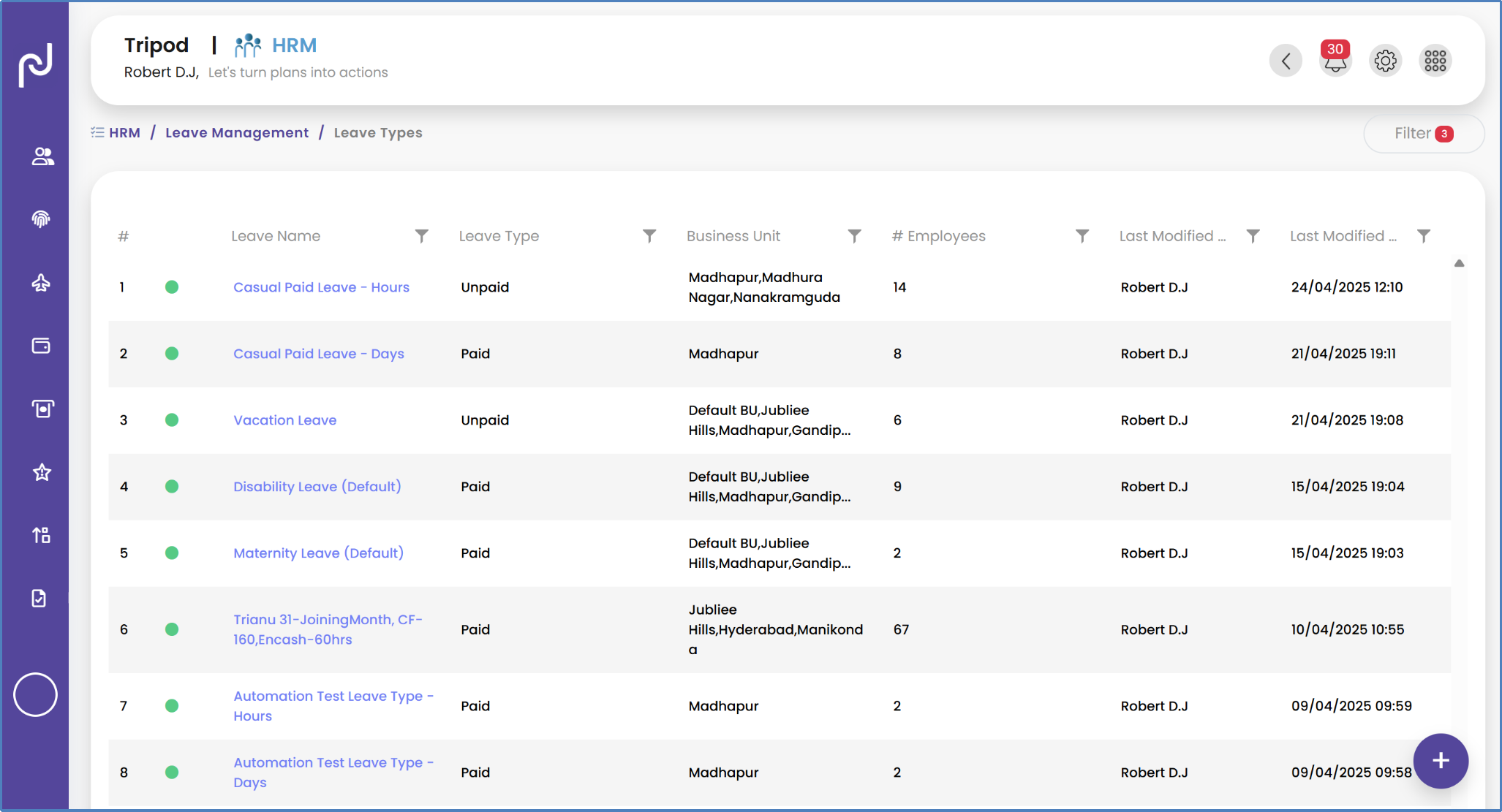
Karya HRMS provides organizations with the flexibility to customize leave types to align precisely with their specific internal policies and legal compliance requirements. This customization capability is crucial because leave policies vary significantly across different regions, industries, and company cultures. The ability to tailor leaves types within Karya HRMS ensures that the system adapts to these unique requirements, guaranteeing legal compliance and alignment with the organization's distinct leave policies. This flexibility prevents discrepancies between policy and system implementation, thereby reducing the risk of non-compliance.
Best Practice: Transparent and Compliant Leave Policies
To ensure effective leave management:
- ● Establish Transparent Policies: Draft clear, actionable leave policies that are easy for employees to understand and adhere to.
- ● Communicate Effectively: Send company-wide emails and host education sessions to present new policies and answer questions. Post policies in a centralized location like the company intranet.
- ● Monitor Regulatory Requirements: Stay updated on federal, state, and local labor laws (e.g., FMLA) regarding employee leave entitlements to ensure continuous compliance and avoid legal risks.
- ● Leverage Technology: Utilize leave management software to configure absence types, track requests, calculate accruals, set notifications, and integrate with payroll.
- Steps to Add/Update a Leave Type:
- 1. Go to HRM from the Main Menu bar on the top right corner.
- 2. From the left menu bar, click on Leave Management.
- 3. From the dropdown menu, go to Leave Types.
- 4. Here, you can add/update the leave types.

Applying for Leave: Employee Self-Service
Employees can easily apply for leave through Karya’s intuitive leave management system. This employee self-service functionality for leave applications significantly enhances the overall employee experience and substantially reduces the administrative burden on HR departments. Empowering employees to apply for leave directly through the system minimizes manual paperwork and eliminates the need for extensive back-and-forth communication with HR. This aligns with user experience principles of making tools accessible, simple, and enjoyable for employees to use, which in turn leads to greater employee satisfaction. For HR, this automates a high-volume administrative task, allowing them to allocate more time and resources to strategic approvals and policy management.
- Steps to Apply for a Leave:
- 1. Go to HRM from the Main Menu bar on the top right corner.
- 2. From the left menu bar, click on Leave Management.
- 3. From the dropdown menu, go to My Leaves.
- 4. Here, you can apply for your leave.

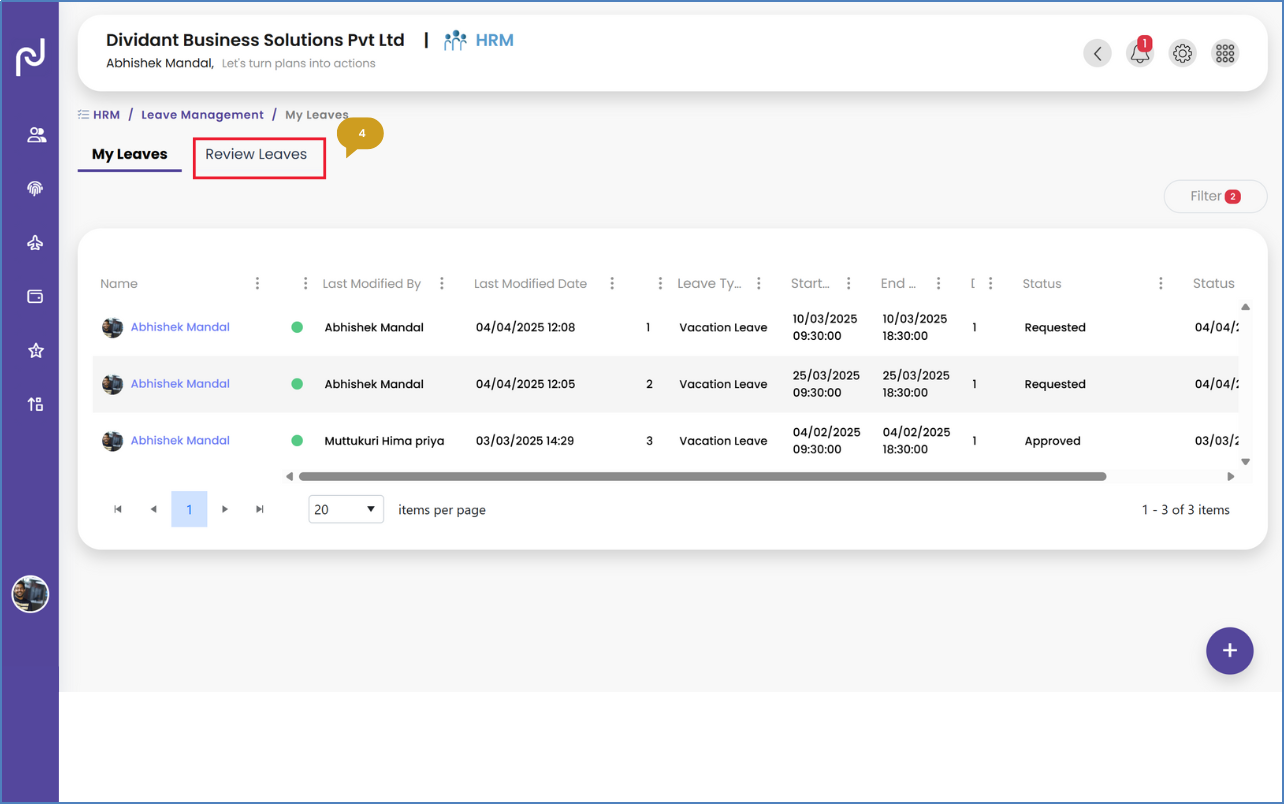
Approval Process: Reviewer and Admin Roles
Karya’s Leave Management feature is designed to streamline the entire process of requesting, approving, tracking, and reporting employee leaves. This comprehensive approach ensures efficiency and transparency throughout the leave lifecycle.
- Steps for a Reviewer to Approve Employee Leaves:
- 1. Go to HRM from the Main Menu bar on the top right corner.
- 2. From the left menu bar, click on Leave Management.
- 3. From the dropdown menu, go to My Leaves.
- 4. In the My Leaves page, go to the Review Leaves tab.

Viewing Leave Balances: Transparency for All
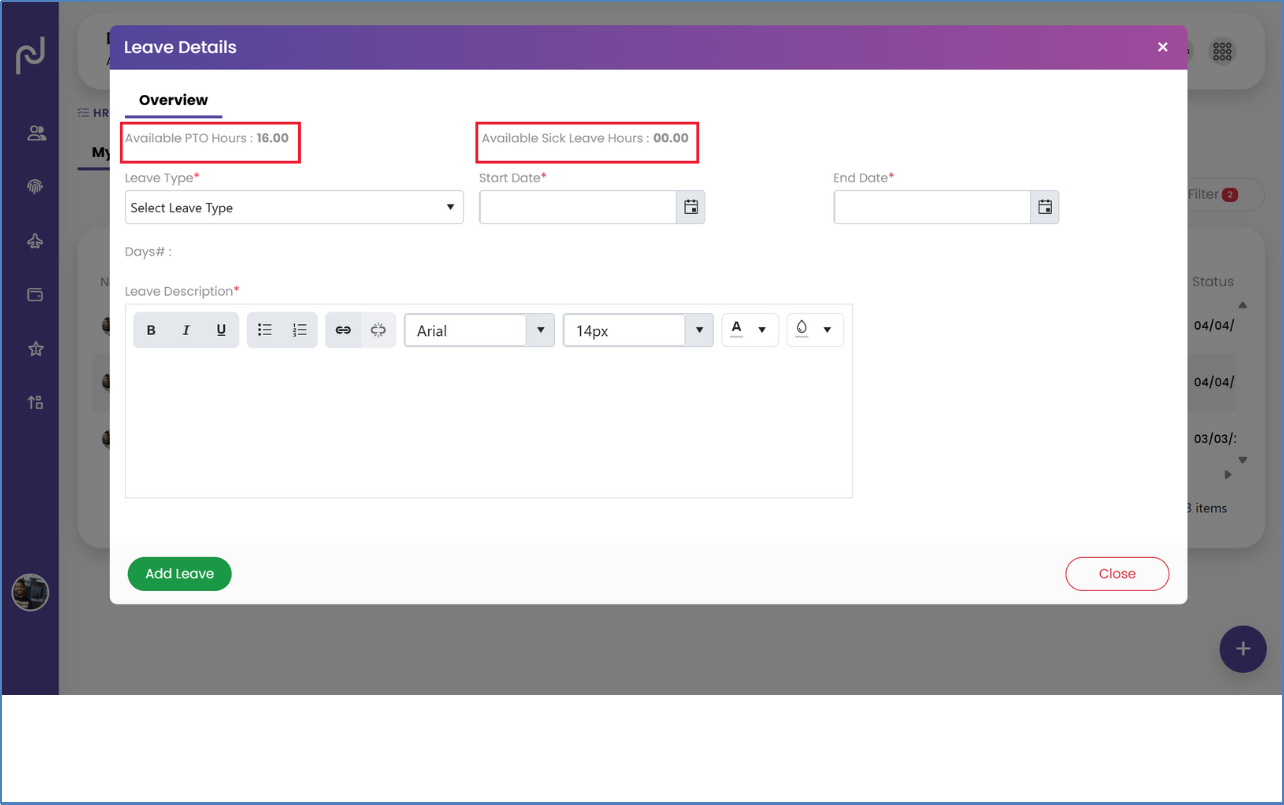
Employees can view their leave balance conveniently within their profile, specifically under the Leave Summary tab, as well as at the point of applying for new leave. Transparent leave balances foster trust and empower employees to manage their time off effectively. Providing employees with clear visibility into their available leave balance and any leave encashment balance reduces ambiguities and minimizes the volume of queries directed to HR. This transparency aligns with the objective of ensuring clarity for both employees and HR, and it contributes significantly to a positive employee experience by giving individuals greater control and understanding over their entitlements
- Steps for an Employee to Check their Leave Balance:
- 1. Go to HRM from the Main Menu bar on the top right corner.
- 2. From the left menu bar, click on Leave Management.
- 3. From the dropdown menu, go to My Leaves.
- 4. Click on Add Leave to see your leave balance.
Setting Expense Limits: Budget Control
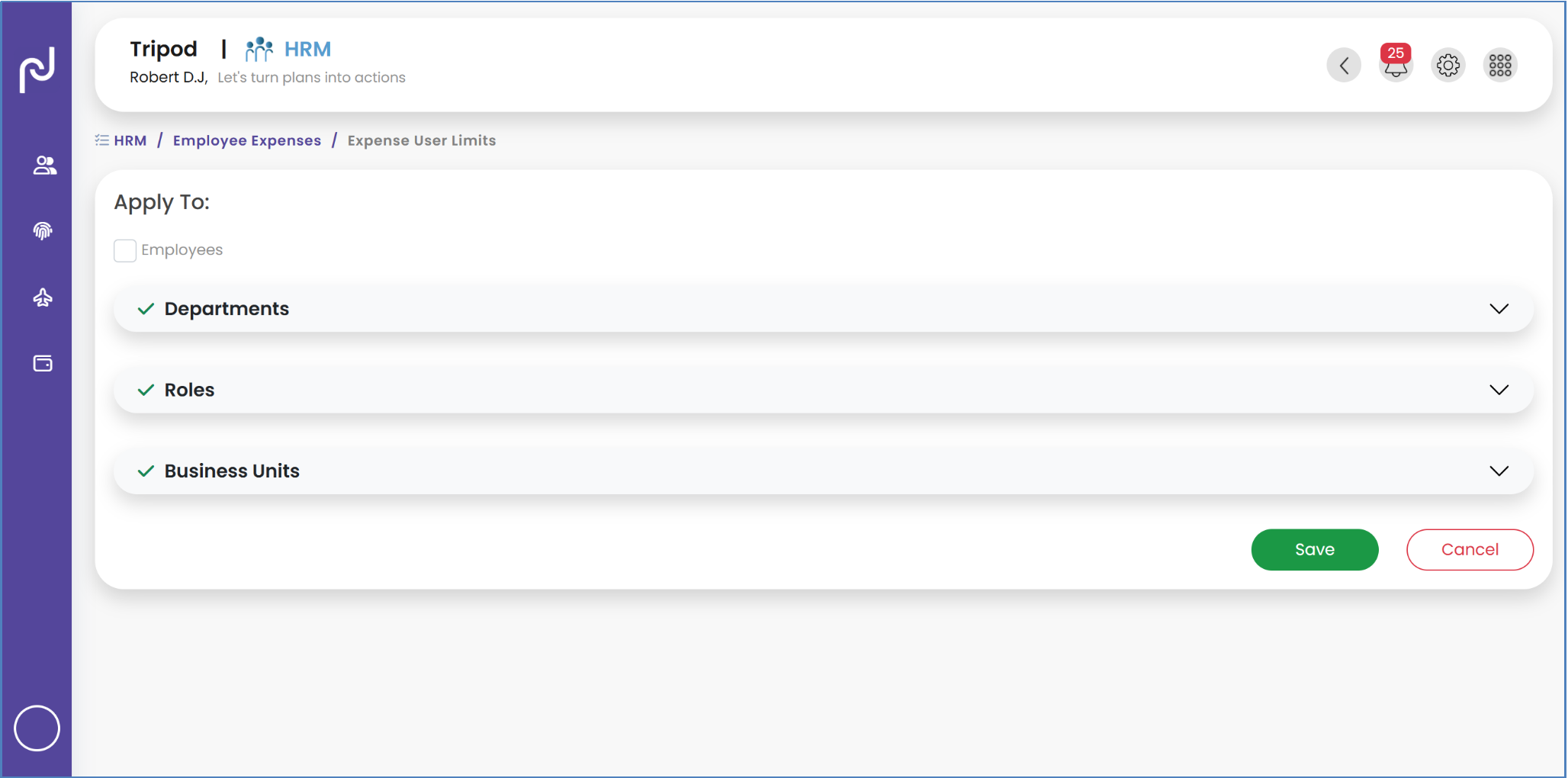
Karya HRMS offers the capability to establish granular expense limits for employees and trips, which can be configured based on specific departments, roles, and business units. This proactive approach to setting granular expense limits enables robust budget control and effectively reduces financial risk associated with unauthorized or excessive spending. By allowing limits to be set based on departments, roles, and business units, Karya HRMS moves beyond simple expense tracking to active cost management. This ensures that expenditure remains within the predetermined budget, preventing overspending and providing finance teams with clear visibility into all expenditures. This feature is a key component of sound financial governance and efficient resource allocation.
- Steps to Set Expense Limits:
- 1. Go to HRM from the Main Menu bar on the top right corner.
- 2. From the left menu bar, click on Employee Expenses.
- 3. From the dropdown menu, go to Expense User Limits.
Managing Regular and Trip Expenses: Efficient Reimbursement
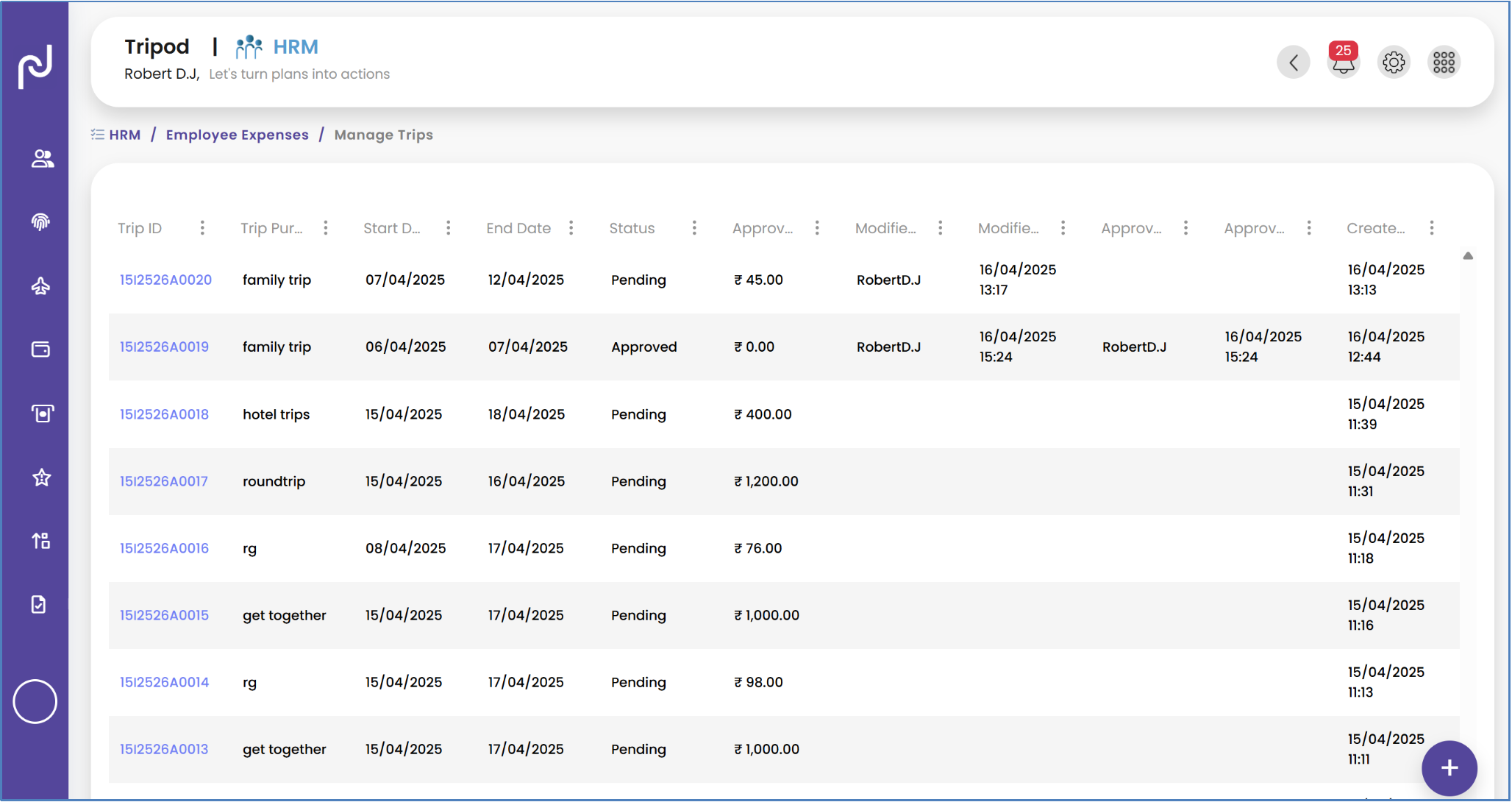
Karya HRMS facilitates the efficient management of both regular and trip-related expenses for reimbursement. Employees can easily add their regular expenses for reimbursement by navigating to HRM > Employee Expenses > Manage/My Expenses and clicking the "Add" button. It is important to distinguish between "Manage Expenses," which refers to the higher-level process of planning, tracking, and controlling expenses, and "My Expenses," which simply displays an individual's personal spending data. For trip-specific expenses, employees can add them by going to HRM > Employee Expenses > My Trips. Streamlined expense reimbursement processes are crucial for maintaining employee satisfaction and ensuring accurate financial reporting. Efficiently reimbursing employees for work-related duties is fundamental for employee morale and financial fairness. The ability to submit expenses on-the-go via mobile devices significantly enhances the employee experience. For HR and Finance teams, this functionality ensures that they gain clear visibility into expenditures, which is vital for accurate budgeting and tax compliance.
- Steps to Add Regular Expenses:
- 1. Go to HRM from the Main Menu bar on the top right corner.
- 2. From the left menu bar, click on Employee Expenses.
- 3. From the dropdown menu, go to Manage/My Expenses.
- 4. Click the "Add" button.

- Steps to Add Trip Expenses:
- 1. Go to HRM from the Main Menu bar on the top right corner.
- 2. From the left menu bar, click on Employee Expenses.
- 3. From the dropdown menu, go to My Trips.
Setting Groups: Organized Compensation Processing
Payroll setting groups within Karya HRMS are designed to organize employees who share common characteristics such as pay cycle, salary structure, work location, department, business unit, and applicable tax and compliance rules. This organizational structure simplifies the bulk processing of salaries and deductions, making payroll administration significantly more efficient. These groups are essential for scalable and compliant payroll management, particularly for organizations with diverse employee structures. As organizations expand or operate across multiple locations with varying pay cycles, managing payroll individually becomes unsustainable. Payroll setting groups allow for efficient segmentation and processing, ensuring adherence to varied tax and compliance rules across different employee cohorts. This directly supports robust payroll management and reduces the complexity and potential for errors in compensation processing.
- Steps to Add Payroll Setting Groups:
- 1. Go to HRM from the Main Menu bar on the top right corner.
- 2. From the left menu bar, click on Payroll.
- 3. From the dropdown menu, click on Payroll Setting Groups.

Ensuring Timely and Accurate Payments
Payroll refers to the comprehensive process through which companies calculate, manage, and distribute employee compensation. This involves determining salaries, deducting statutory contributions (such as taxes, provident funds, and insurance), ensuring regulatory compliance, and disbursing payments on a regular schedule (e.g., weekly, bi-weekly, or monthly). Karya HRMS is engineered to simplify and streamline this critical payroll process. Automated payroll processing is fundamental for achieving financial accuracy, ensuring legal compliance, and maintaining employee trust. Automating the process reduces human error, guarantees timely payments, and simplifies the application of statutory contributions. This directly contributes to employee satisfaction and helps prevent costly compliance issues, enabling HR professionals to dedicate their efforts to more strategic initiatives rather than manual calculations.
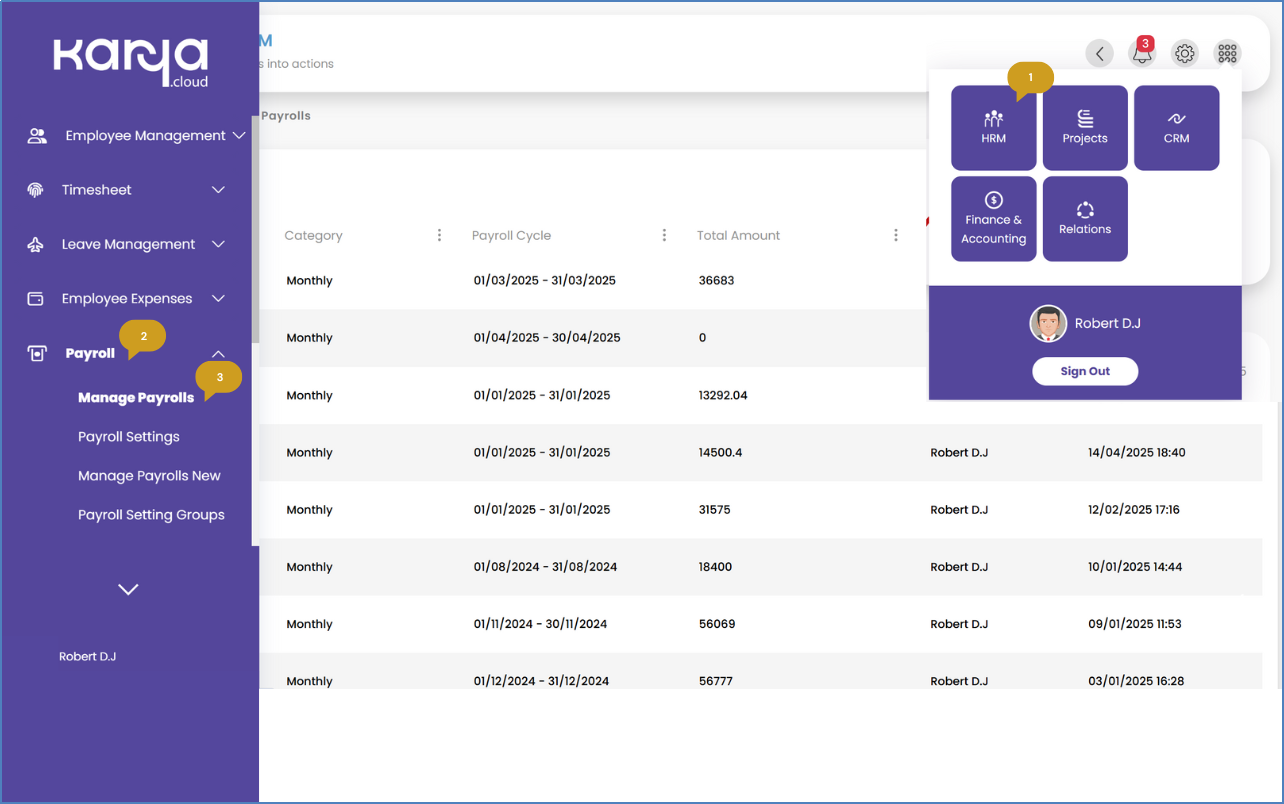
- Steps to Run Payroll:
- 1. Go to HRM from the Main Menu bar on the top right corner.
- 2. From the left menu bar, click on Payroll.
- 3. From the dropdown menu, go to Manage Payroll.
- 4. Click "Run Payroll".

Issues and Recognitions
Karya HRMS provides a dedicated module for Quality Monitoring, which allows for the categorization of both issues and recognitions within the organization. This structured approach supports a culture of continuous feedback and recognition, which is crucial for fostering employee engagement and driving performance improvement. Providing formal channels for reporting issues and acknowledging recognitions moves beyond informal feedback mechanisms. It allows for systematic tracking of concerns and the structured acknowledgment of achievements. This fosters greater employee engagement, helps identify and address areas that may not be meeting employee needs, and reinforces positive behaviors, thereby contributing to overall talent development and retention.
- Steps to Manage Categories:
- 1. Go to HRM from the Main Menu bar on the top right corner.
- 2. From the left menu bar, click on Quality Monitoring.
- 3. From the dropdown menu, go to Manage Categories.
- Steps to Add an Issue or Recognition:
- 1. Go to HRM from the Main Menu bar on the top right corner.
- 2. From the left menu bar, click on Quality Monitoring.
- 3 .From the dropdown menu, go to Manage Issues/Recognition.
Employees can view their own issues and recognitions in their profile under HRM > Quality Monitoring > My Issues/Recognition.
Driving Performance and Development
An appraisal in Karya HRMS represents the formal evaluation of an employee’s performance over a specific period, a process often directly linked to salary revisions, promotions, career development, and skill improvement plans. The primary objectives of appraisals within the system are to accurately measure employee performance, formally recognize achievements, identify any skill or performance gaps, and meticulously plan for future growth. Integrated appraisal management facilitates strategic talent development and objective performance-based decisions. Linking appraisals to salary revision, promotions, career development, and skill improvement plans transforms them from mere evaluations into actionable development tools. By providing templates and a clear initiation process, Karya HRMS supports consistent and fair performance management, which is essential for comprehensive employee performance reporting and aligning individual growth with broader organizational goals.
- Best Practice: Continuous Performance Management
To cultivate workforce excellence through performance management: - ● Regular Check-Ins: Implement weekly or bi-weekly -on-s between managers and team members to discuss progress, priorities, and problems.
- ● Goal setting and OKRs:Set clear, measurable goals (Objectives and Key Results) that align with company objectives, with quarterly goal-setting and monthly check-ins.
- ● Real-Time Feedback Mechanisms: Utilize digital tools for instant feedback sharing and recognition systems for peers to acknowledge great work.
- ● kill Development Plans: Identify key skills, create personalized development plans, and offer micro-learning opportunities for continuous skill building.
- ● 360-Degree Feedback: Gather input from managers, peers, direct reports, and clients to get a holistic view of performance.
- Steps to Add Appraisal Templates:
- 1. Go to HRM from the Main Menu bar on the top right corner.
- 2. From the left menu bar, click on Appraisal Management.
- 3. From the dropdown menu, go to Appraisal Templates.

- Steps to Initiate an Appraisal:
- 1. Go to HRM from the Main Menu bar on the top right corner.
- 2. From the left menu bar, click on Appraisal Management.
- 3. From the dropdown menu, go to Send Appraisal.

Automating HR Documentation
Karya HRMS allows users to upload their own custom HR templates, which can then be utilized for automating the generation of important HR documents such as Onboarding letters, Appreciation letters, Warning notices, and Exit documents. Custom HR templates significantly reduce the manual effort involved in document creation and ensure consistency in branding and legal compliance across all HR communications. Automating these documents saves immense time and reduces human error. This ensures that all official communications are consistent in branding and content, and critically, that they adhere to legal requirements for various HR processes. This is a direct application of automating different tasks and leveraging workflows to improve overall HR efficiency.
- Steps to Manage HR Templates:
- 1. Go to HRM from the Main Menu bar on the top right corner.
- 2. From the left menu bar, click on HR Templates.
- 3. From the dropdown menu, go to Manage HR Templates.


Streamlining the Hiring Journey
Karya HRMS features a comprehensive talent acquisition module specifically designed to streamline and automate the entire hiring process for businesses.
Customizing Status and Pipeline Workflows
The system enables users to customize status and pipeline workflows for individual job positions. Customizable workflows ensure that the hiring process is optimized for maximum efficiency and tailored precisely to the organization's unique needs, thereby improving critical time-to-hire metrics. The ability to customize these workflows allows organizations to align the HRMS with their specific recruitment strategies. This flexibility supports speeding up the sorting of applications, accelerating the progression of candidates through various phases, and automatically moving candidates to the next stages in the hiring process, directly impacting the time required to fill roles and overall recruitment efficiency.
-
Best Practice: Optimizing Talent Acquisition
To optimize talent acquisition and hiring: - ● Define Relevant Metrics: Focus on metrics like time-to-hire, quality of hire, offer acceptance rate, and cost-per-hire to identify inefficiencies and assess effectiveness.
- ● Streamline Workflows: Automate candidate progression through recruitment phases to speed up application sorting and reduce time-to-hire.
- ● Leverage Analytics: Use HR analytics modules to produce metrics on key areas like offer acceptance, absenteeism, and turnover rates to inform recruitment strategies.
- Steps to Customize Status /Pipeline Workflow:
- 1. Go to HRM from the Main Menu bar on the top right corner.
- 2. From the left menu bar, click on Talent Acquisition.
- 3. From the dropdown menu, go to Manage Status /Pipeline Workflow.

Adding Job Openings
New job openings can be efficiently added through the system.
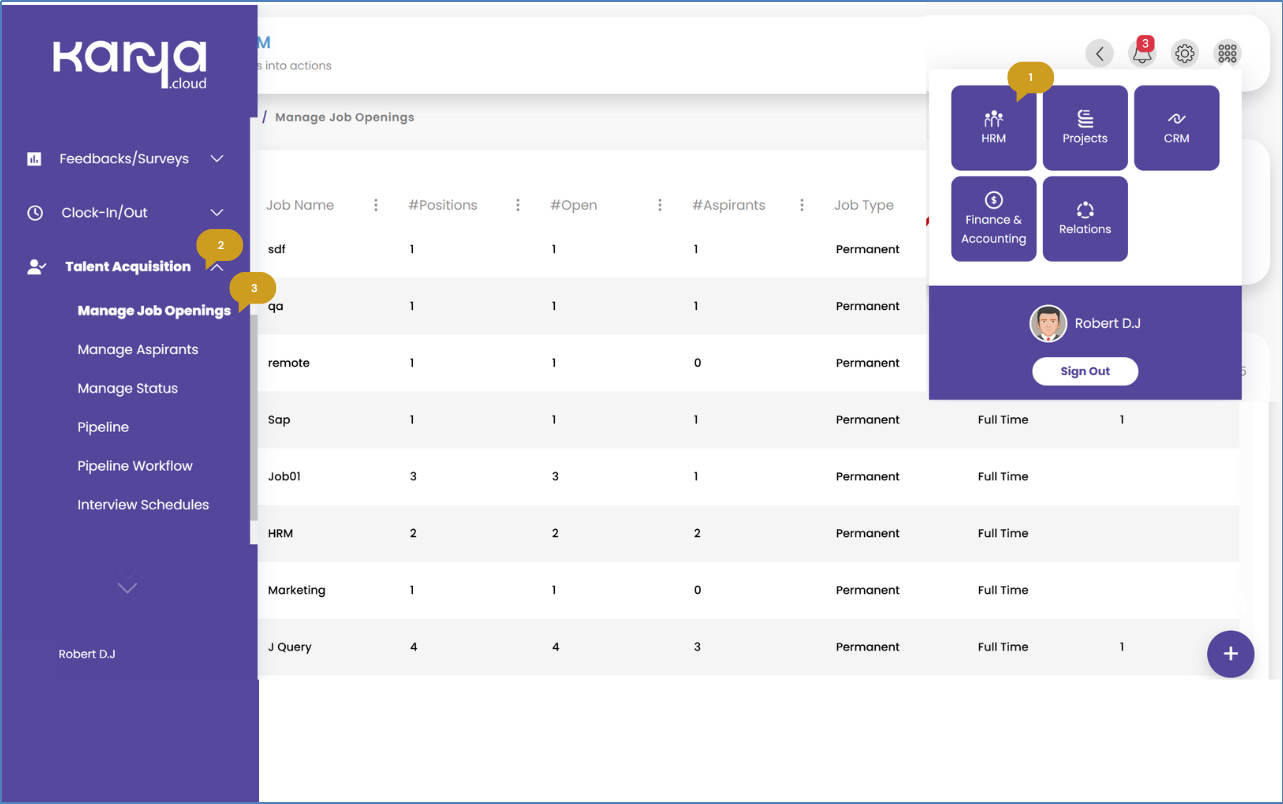
- Steps to Manage Job Openings:
- 1. Go to HRM from the Main Menu bar on the top right corner.
- 2. From the left menu bar, click on Talent Acquisition.
- 3. From the dropdown menu, go to Manage Job Openings.
Managing and Tagging Aspirants
Karya HRMS allows for the addition of aspirants (candidates) and their subsequent tagging to specific job openings. This ensures that candidate profiles are linked to relevant positions for streamlined recruitment management.
- Steps to Manage Job Openings:
- 1. Go to HRM from the Main Menu bar on the top right corner.
- 2. From the left menu bar, click on Talent Acquisition.
- 3. From the dropdown menu, go to Manage Aspirants.

Accessing Key HR Reports
Karya HRMS provides a suite of real-time, cloud-accessible reports that are instrumental in streamlining various HR processes, including employee attendance, payroll, and performance tracking. These robust reporting capabilities empower HR teams to make informed, data-driven decisions, effectively monitor workforce trends, and ensure continuous compliance with labor regulations. The reports are designed to provide a comprehensive overview of HR operations, enabling proactive management and strategic planning.
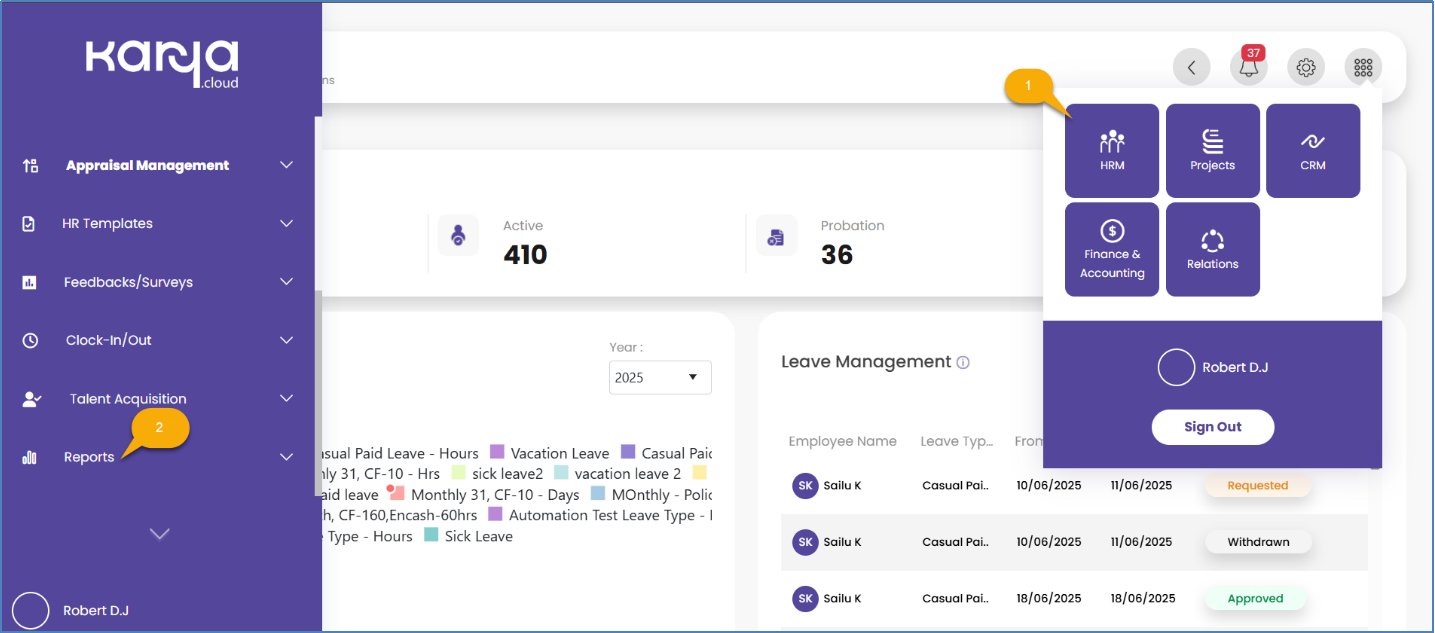
- Steps to Access Reports:
- 1. Go to HRM from the Main Menu bar on the top right corner.
- 2. From the left menu bar, click on Reports.
Leveraging Data for Strategic HR Decisions
The various reports available within Karya HRMS offer distinct perspectives and actionable intelligence for HR professionals:
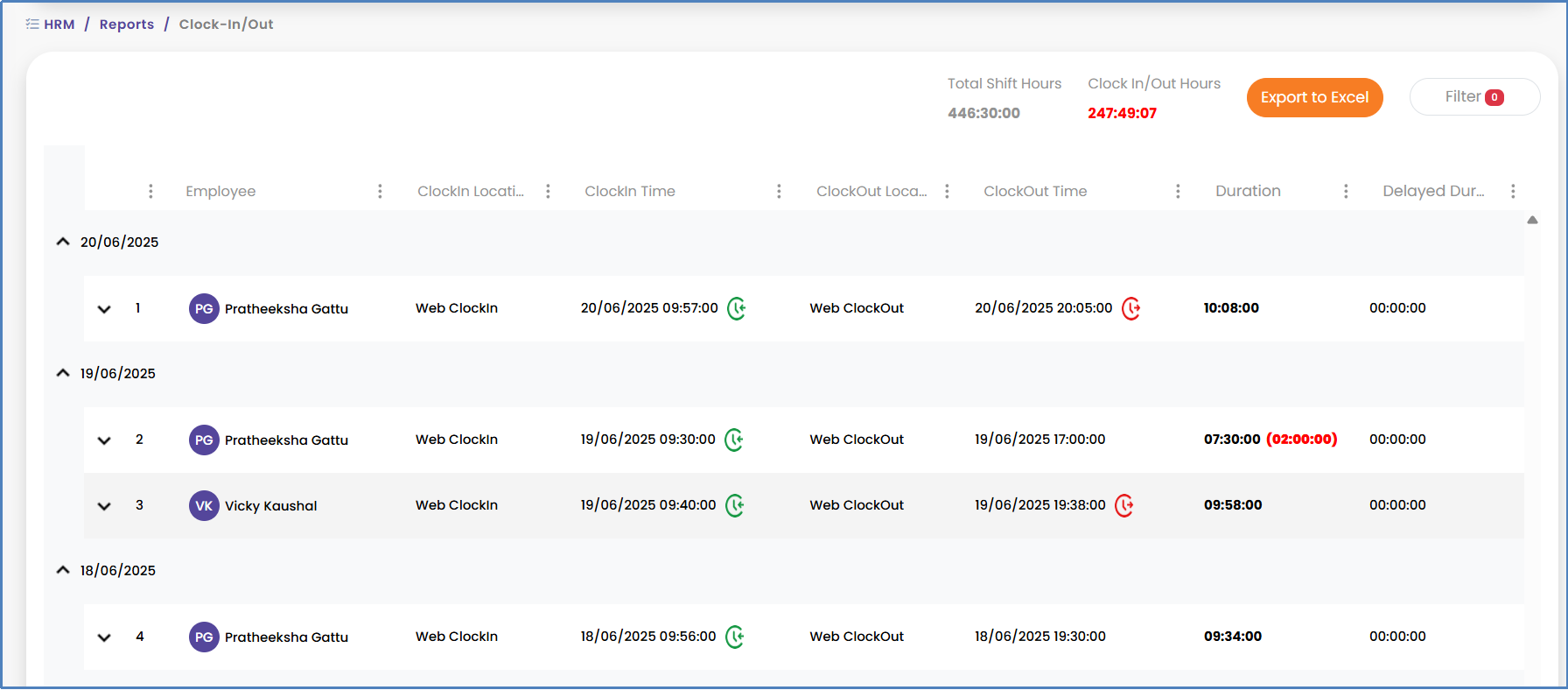
- ● Clock-in/out report: This report displays the time logs of all users and can be filtered by business unit, specific employees, and dates. Data visibility within this report is determined by user roles, allowing normal employees to view only their own data, managers to see their data and that of their reportees, and administrators to access all user data across the organization. This report is crucial for ensuring attendance compliance, maintaining payroll accuracy, and identifying potential time management issues within the workforce. Beyond basic timekeeping, it provides granular data on actual hours worked, which is essential for payroll processing and generating statutory reports based on attendance data. For managers, this report can highlight patterns of tardiness or excessive overtime, enabling proactive interventions and performance discussions.
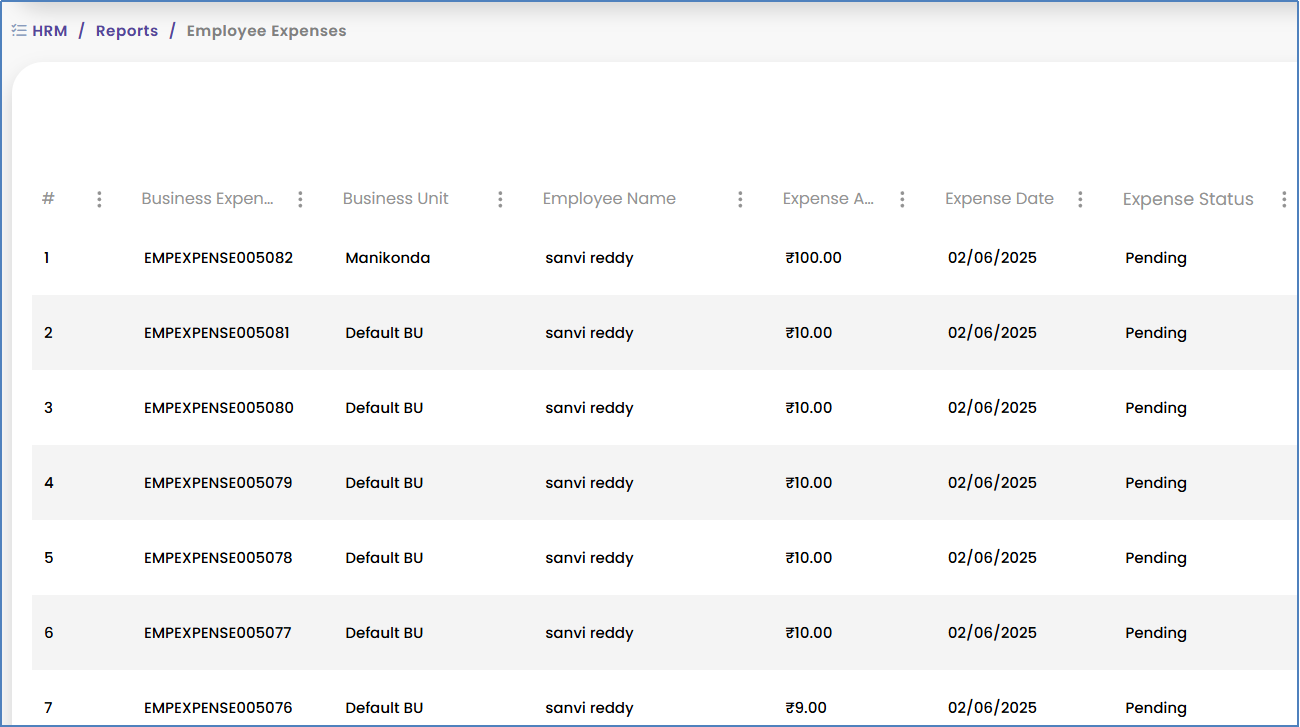
- ● Employee Expenses report: This report allows for the viewing and exporting of employee expense reports based on the selected Business Unit. This report supports robust financial oversight, adherence to budget limits, and the detection of potential fraud. Filtering expenses by business unit enables detailed cost analysis and ensures accountability within specific departments. This is critical for tracking and analyzing expenses and ensuring that financial management is organized and efficient.
- ● Employee Loan reports: The system provides options to view and export employee loan reports, also filterable by the selected Business Unit. This report facilitates transparent loan tracking and accurate financial reconciliation. Centralized loan reporting by business unit helps finance teams easily track outstanding loans, repayments, and other loan-related details, which is vital for accurate financial statements and ensuring proper deductions from payroll.
- ● Employees reports: This report enables the viewing and exporting of comprehensive employee reports based on the selected Business Unit. These reports can include personal details, job roles, and employment status. This report serves as a foundational tool for workforce analytics, compliance audits, and strategic talent planning. Access to detailed employee information filtered by business unit allows HR to perform various analyses, such as demographic breakdowns, turnover rates, or skill inventories. This supports manpower planning and ensures that correct and updated employee information is maintained for compliance and informed decision-making.
- ● Issues & Recognition reports: This report allows for the viewing and exporting of Issues & Recognition reports based on specific types and categories. This report provides actionable insights into organizational culture and employee sentiment, which can directly inform HR interventions and strategic initiatives. Analyzing issues and recognition data by type and category enables HR to identify recurring problems, understand employee concerns, and measure the effectiveness of recognition programs. This moves beyond anecdotal evidence to data-driven improvements in employee engagement and addressing workplace challenges and celebrating achievements.
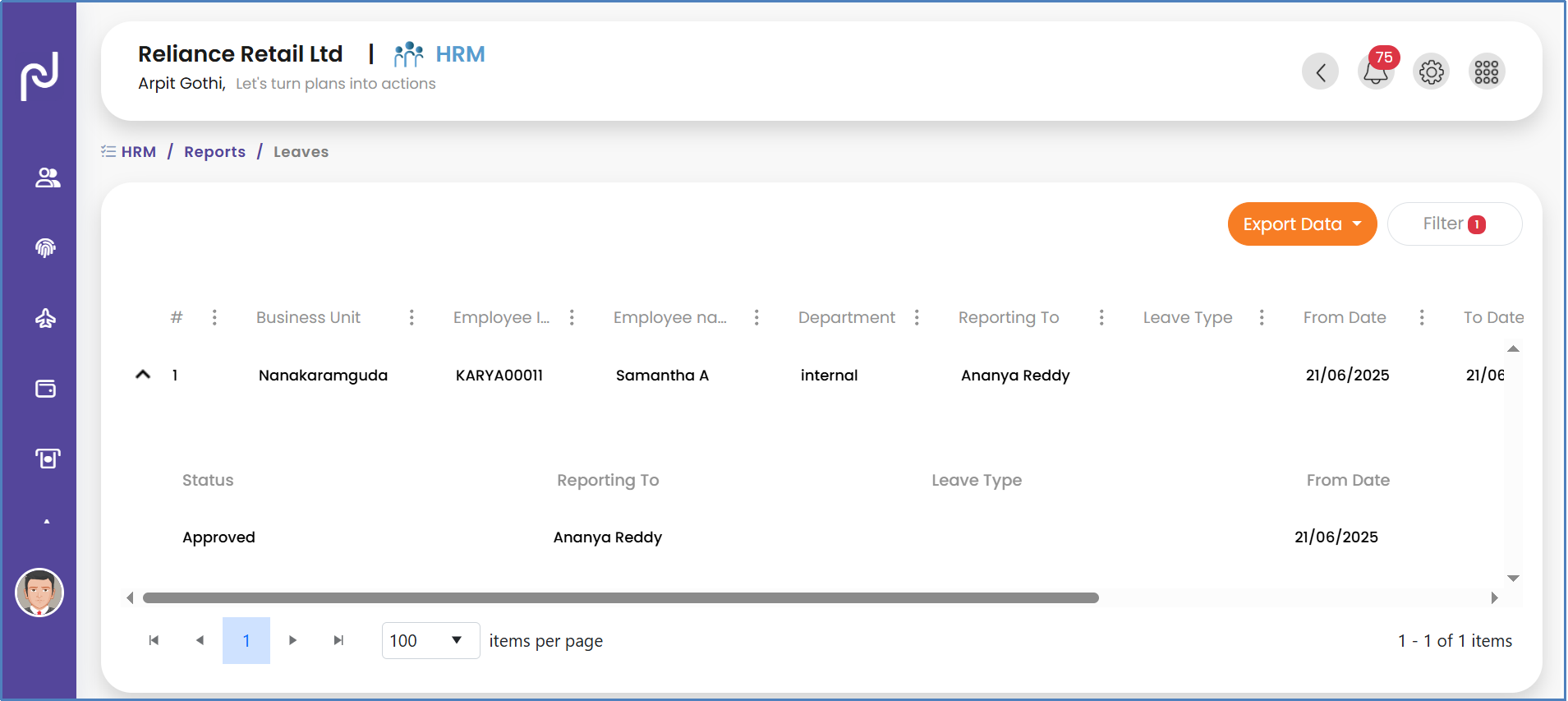
- ● Leaves reports: This report enables the viewing and exporting of Leave Reports based on multiple filters, including Business Unit, Department, Leave Status, and Leave Type. This report is crucial for effective workforce planning, proactive absenteeism management, and ensuring strict adherence to leave policies. Detailed leave reports with multiple filters allow HR to analyze absenteeism trends, identify departments with high leave usage, and ensure compliance with established leave policies. This supports workforce planning by providing insights into resource availability and aids in the proactive management of staffing levels.


-
Best Practice: Actionable HR Analytics
To make HR metrics truly matter: - ● Align Metrics to Business Goals: Don't measure for measurement's sake. Tie metrics to outcomes that matter to the business, such as customer satisfaction, innovation, or growth.
- ● Ensure Data Quality and Consistency: A single source of truth is critical. Standardize data entry procedures and integrate HR software with other systems for seamless data flow.
- ● Invest in Accessible, Actionable Analytics: Provide HR and business leaders with intuitive dashboards that surface insights from people analytics in real-time.
- ● Build Data Literacy: Equip the HR team with the skills to interpret data, ask good questions, and take action.
- ● Continuously Improve: Use metrics not just to report but to learn, iterate, and evolve your people strategy.
Key HRMS Reports & Their Purpose
This table functions as a quick reference guide for HR professionals, elucidating the strategic utility of each available report. It transcends a mere listing of reports by explaining the purpose and the specific intelligence they offer for HR decision-making. A table that clearly articulates the purpose and the insights gained from each report helps HR professionals quickly identify which report is most relevant for a specific problem or analysis, such as absenteeism trends, budget tracking, or compliance audits. This directly supports the need for actionable HR intelligence and facilitates data-driven decisions.
| Report Name | Primary Purpose | Key Insights for HR Professionals | Available Filters |
| Clock-in/out Report | Track time logs for all users | Attendance compliance, payroll accuracy, time management issues | Business Unit, Employees, Dates |
| Employee Expenses Report | View and export employee expense reports | Financial oversight, budget adherence, fraud detection | Business Unit |
| Employee Loan Reports | View and export employee loan details | Transparent loan tracking, financial reconciliation | Business Unit |
| Employees Reports | View and export comprehensive employee data | Workforce analytics, compliance audits, strategic talent planning | Business Unit |
| Issues & Recognition Reports | Track and analyze workplace issues and acknowledgments | Organizational culture, employee sentiment, HR intervention areas | Type, Category |
| Leaves Reports | Monitor and analyze employee leave records | Workforce planning, absenteeism management, leave policy compliance | Business Unit, Department, Leave Status, Leave Type |
Overview of Mobile Features for Employees and Managers
The Karya mobile application significantly extends the core functionalities of the HRMS, providing unparalleled flexibility and accessibility for both employees and managers who are frequently on the go. Access to specific features within the mobile app is meticulously controlled by user permissions, ensuring data security and role-appropriate functionality. Mobile accessibility transforms HR processes into seamless, on-demand experiences, which significantly boosts employee engagement and managerial responsiveness. The availability of mobile features means that HR tasks are no longer confined to a desktop environment. Employees can apply for expenses on the go or check their leave balances instantly, while managers can swiftly approve claims and timesheets from any location. This aligns with user experience principles of anywhere/anytime management and making tools accessible, simple, and enjoyable, directly contributing to greater employee engagement and overall operational agility.
- The key features available in the mobile version include:
- ● Manage Leaves: Users with "Manage Page" access in the mobile app possess the authority to approve or reject employee leave requests based on their assigned business unit. Furthermore, these users can also apply for leave on behalf of other employees directly through the mobile application.
- ● Manage Timesheets: Users granted "Manage Page" access in the mobile app can efficiently approve timesheets, enabling timely processing even when away from a desktop.
- ● Manage Employee Expenses: Users with "Manage Page" access in the mobile app are empowered to approve or reject employee expenses. They can also initiate and apply for expenses on behalf of other employees using the mobile application.
- ● Clock In/Out Data: Users with "Manage Page" access in the mobile app can view comprehensive clock-in and clock-out data, filtered by their assigned business unit, providing real-time attendance oversight.
- ● Clock In/Out History: Every user, regardless of their specific permissions, can access and view their own personal clock-in and clock-out history directly through the mobile app. This feature enhances transparency, allowing users to easily monitor their daily attendance, including the exact times they started and ended their shifts.
- ● My Timesheets: Employees with "My Page" access can conveniently fill in and submit their timesheets directly from the mobile application, streamlining their daily task reporting.
- ● My Leaves: Users with "My Page" access can easily apply for leave through the mobile app, leveraging the system's self-service capabilities.
- ● My Employee Expenses: Users with "My Page" access can conveniently apply for expenses directly through the mobile app. This feature enables them to submit expense claims on the go by entering necessary details and attaching receipts, ensuring a smooth and efficient reimbursement process without requiring a desktop system.
Maximizing Your Karya HRMS Investment
Karya HRMS stands as a powerful and comprehensive tool that, when fully leveraged, can profoundly enhance HR operations, ensure stringent compliance, and significantly elevate the employee experience. Its integrated design, spanning from centralized data management and automated workflows to strategic reporting and mobile accessibility, empowers HR professionals to transcend routine administrative tasks and assume a more strategic role within the organization.
The system's capabilities in automating critical processes, such as payroll, time tracking, and document management, directly contribute to operational efficiencies and a reduction in manual errors. Features like granular expense limits and customizable leave types ensure financial control and policy adherence. Furthermore, the robust reporting and analytics modules transform raw data into actionable intelligence, enabling HR teams to monitor workforce trends, identify areas for improvement, and make informed decisions that drive organizational success. The emphasis on user-specific access and comprehensive audit trails reinforces data integrity and accountability, crucial for maintaining trust and meeting regulatory demands.
To maximize the return on investment in Karya HRMS, organizations are encouraged to continuously explore the system's full range of capabilities, actively utilize its analytical tools for deeper workforce insights, and provide ongoing feedback for continuous optimization. This iterative approach ensures that the HRMS evolves with the organization's needs and remains a dynamic asset. By embracing a comprehensive HRMS like Karya, organizations are not merely managing human resources; they are strategically investing in their workforce. This investment fosters an agile, compliant, and thriving employee ecosystem, positioning HR as a pivotal driver of business growth and resilience in an ever-evolving landscape.
Introduction
Karya HRMS is engineered as a robust Human Resource Management System (HRMS) designed to centralize and automate critical HR functions throughout the entire employee lifecycle. This document serves as an advanced guide, transcending basic functionality to offer strategic perspectives and practical relevance for HR professionals. The system provides a unified platform that directly addresses the contemporary challenges faced by HR teams, particularly the need for modern tools to manage diverse aspects of employee journeys, from recruitment to offboarding.
The core value proposition of Karya HRMS lies in its ability to centralize HR data, automate routine administrative tasks, ensure stringent compliance with regulatory requirements, and deliver actionable data-driven intelligence. This integrated approach transforms HR from a purely administrative function into a strategic business partner within the organization. By consolidating essential processes such as payroll, time tracking, employee onboarding, performance reviews, and benefits administration into a single, cohesive system, Karya HRMS provides a comprehensive solution for effective human capital management. The following sections will meticulously detail each module of Karya HRMS, emphasizing its practical application, implications for regulatory adherence, and its overall contribution to enhancing HR efficiency and the broader employee experience.
An HRMS represents a sophisticated software solution that integrates various human resources functions into a singular, unified system. Karya HRMS exemplifies this by offering a centralized view of crucial HR metrics and employee data in real-time, providing a dynamic snapshot of the workforce. This real-time capability is paramount for modern HR operations, enabling immediate access to critical information.
While the terms HRMS and HRIS (Human Resources Information System) are often used interchangeably, a distinction exists. HRMS platforms typically encompass a more comprehensive suite of features, extending beyond core HR functions to include advanced talent management tools. In contrast, HRIS often concentrates primarily on core administrative data management. Karya HRMS aligns with the broader HRMS definition, incorporating modules such as Talent Acquisition and Appraisal Management, which are indicative of a system designed for comprehensive talent lifecycle management.
The strategic importance of modern HRMS platforms cannot be overstated. They are indispensable for managing the entire employee lifecycle, from the initial stages of recruiting and onboarding through ongoing performance management, and finally, to the offboarding process. Karya HRMS is specifically designed to streamline HR operations and empower organizations to make data-driven decisions, thereby enhancing overall organizational agility and responsiveness.
The implementation of a robust HRMS like Karya offers multifaceted benefits that significantly impact an organization's operational efficiency, compliance posture, and strategic capabilities:
- ● Operational Efficiency: Karya HRMS automates numerous routine tasks, substantially reducing manual workloads and accelerating approval processes across various HR functions. This automation minimizes the time spent on repetitive administrative activities, allowing HR professionals to focus on more strategic initiatives.
- ● Data Accuracy & Centralization: The system provides rapid access to securely backed-up and accurate employee data, ensuring that correct and updated information is consistently maintained. This centralization creates a single source of truth for all employee-related data, mitigating discrepancies and improving data reliability for critical decision-making.
- ● Enhanced Compliance: Karya HRMS plays a pivotal role in helping organizations ensure strict regulatory compliance with both government and corporate rules. By facilitating the maintenance of all required documents and ensuring records are consistently up-to-date, the system reduces the risk of non-compliance and associated penalties.
- ● Improved Employee Experience: An effectively implemented HRMS contributes directly to greater employee satisfaction and higher retention rates. By making HR processes accessible, simple, and enjoyable, the system fosters a positive interaction between employees and HR functions, which in turn enhances overall employee engagement and morale.
- ● Strategic Decision-Making: Through its robust reporting and analytics capabilities, Karya HRMS enables HR teams to effectively monitor workforce trends and make informed, data-driven decisions. This analytical capacity transforms HR from a support function into a strategic partner capable of providing actionable intelligence for business growth and development.
Dashboard
The Karya HRMS Dashboard serves as the central command center for HR professionals, offering a comprehensive overview of essential HR functions and employee data in real-time. This dynamic interface is critical for immediate situational awareness, allowing HR teams to quickly grasp the current state of their workforce. The dashboard effectively displays critical insights such as attendance records, current leave statuses, progress in ongoing hiring initiatives, and employee expense data. The integration of visual charts and quick-access widgets further facilitates the efficient monitoring of workforce trends, providing a clear and concise summary that supports agile decision-making.
The dashboard is composed of several key widgets, each designed to provide specific, actionable information:
-
● Overview:
This section prominently displays key employee statistics, including the total number of employees, active employees, individuals currently undergoing probation, and the count of pending onboarding processes. This immediate visibility of "employees on probation" and "pending onboarding" allows HR to proactively manage critical stages of the employee lifecycle. For instance, it enables timely initiation of probation reviews, ensures the successful completion of onboarding tasks, and helps identify any potential resource gaps or bottlenecks in the hiring pipeline. This proactive approach helps HR shift from merely reacting to problems to strategically planning for talent needs and development.
-
● Scheduler:
The Scheduler provides a visual timeline that organizes tasks, events, and resource allocations across various departments. It is instrumental in tracking employee shifts, monitoring project deadlines, managing maintenance schedules, and facilitating inventory planning. This feature promotes real-time coordination, enhances operational efficiency, and ensures the timely execution of business activities. The system offers tailored views: logged-in users can view their personal agenda, managers can access data for themselves and their direct reports, and administrators possess the capability to view all organizational data.
-
● Holidays:
This section lists all company-declared holidays for the year, encompassing national, festival, and optional holidays. It assists employees in planning their leaves effectively and ensures accurate attendance tracking. HR departments can also leverage this feature to manage and update holiday calendars across different office locations or departments, ensuring consistency and compliance. Logged-in users can view holidays specific to their assigned business unit, while administrators have access to holiday lists for all business units.
- ● Announcements: This dedicated section is designed for displaying important company-wide messages, such as policy updates, upcoming events, organizational achievements, or general HR notices. This feature is critical for fostering a transparent and engaged organizational culture. The timely and centralized communication of policy changes, events, or HR notices directly impacts employee awareness and ensures alignment with organizational objectives. This approach minimizes information silos, contributes significantly to greater employee engagement, and is a key factor in improving retention and overall productivity. Effective communication through this channel builds trust and ensures that employees feel consistently informed and valued.
- ● Leaves: The Leaves section offers a comprehensive overview of an employee’s leave status, including their available leave balance, upcoming approved leaves, and historical leave data. It empowers users to apply for leave, track the status of their approvals, and easily access company leave policies. This functionality streamlines the entire leave management process and ensures transparency for both employees and HR personnel.
-
● To-Do:
This widget provides an overview of an employee's daily tasks, specifically those assigned to or created by the employee, and which are not directly linked to larger projects. Logged-in users can view their assigned or created To-Dos, and the data can be displayed in either a grid or card view, based on user preference. Managers can view their own tasks and those of their reportees, while administrators have visibility of all user data across the organization.
-
● Time Tracker:
This section displays all tasks and To-Dos assigned to the logged-in user, providing a convenient interface for starting and stopping time tracking against specific activities.
- ● Help: This feature serves as a direct link, redirecting employees to the Karya knowledge base for self-service support and information.
- ● Notifications: This section displays dashboard notifications and reminders that have been set by the organization for the logged-in user, ensuring timely alerts for important updates or actions.
- ● Settings: The Settings section encompasses all the necessary configurations required before utilizing Karya HRMS features. Depending on the organization's industry, users can define access permissions, roles, departments, skills, and other relevant parameters.
- ● Menu: This is the standard hamburger menu icon that provides access to all the modules available within the Karya system.
- ● Leave Trend: This graphical representation displays data on the types of leaves taken by users within the current year. Logged-in employees can view their approved leave types. Managers have the capability to view their own leave data as well as that of their reportees, while administrators can access leave trend data for all users across the organization.
-
● Leave Management (Dashboard Component):
This section presents the logged-in user's leave data for the current month. Employees can see their specific leave types, dates, and the status of their leave requests for the current month. Managers can view their own leaves and those of their reportees, and administrators have access to all user leave data within the organization.
- ● New Hires: This section is universally accessible to all users and provides data on new hires for both the current and previous months.
-
● Clock-in/out hours:
This graph illustrates the hours worked by the logged-in user for the current and previous weeks. Employees can view their total worked hours per week. Managers can access their own working hours and those of their reportees, and administrators can view working hours data for all users in the organization.
- Reportees: This section specifically displays the clock-in data for an employee's direct reportees and is only visible if the logged-in user has reporting staff.
-
Employee Expenses:
This section features a pie chart visualizing expenses incurred and applied for reimbursement within the current month. Logged-in employees can view only their own expenses. Managers have visibility into their expenses and those of their reportees, while administrators can access all user expense reimbursement data across the organization.
This table provides a concise, at-a-glance reference for HR professionals, clarifying the purpose of each dashboard component and, crucially, detailing which user roles possess visibility or specific access to the data. This structured presentation enhances clarity regarding data governance and access control within the HRMS. HR professionals frequently require a clear understanding of data visibility for reasons of compliance, privacy, and operational efficiency. A matrix that explicitly delineates "who sees what" for components like the Scheduler, Holidays, To-Do, Leave Trend, Leave Management, Clock-in/out hours, and Employee Expenses helps prevent confusion, supports user training, and ensures that data security protocols are implicitly understood by all users. Such a matrix also proven invaluable for auditing access permissions.
| Dashboard Component | Primary Function/Information Displayed | Employee Access | Manager Access | Admin Access |
| Overview | Total, active, probation, pending onboarding employees | View | View | View |
| Scheduler | Visual timeline of tasks, events, resource allocations | View Own Agenda | View Own & Reportees | View All |
| Holidays | Company-declared holidays | View by Business Unit | View by Business Unit | View All |
| Announcements | Company-wide messages, updates | View | View | View |
| Leaves | Leave status, balance, history | View & Apply | View & Approve | View & Approve |
| To-Do | Daily tasks (assigned/created) | View Own | View Own & Reportees | View All |
| Time Tracker | Tasks/To-Dos for time tracking | View & Track | View & Track | View & Track |
| Help | Redirects to Knowledge Base | Access | Access | Access |
| Notifications | Dashboard alerts, reminders | View | View | View |
| Settings | System configurations (roles, access) | Configured by Admin | Configured by Admin | Manage |
| Menu | Access to all Karya modules | Access | Access | Access |
| Leave Trend | Graph of leave types taken (current year) | View Approved Own | View Own & Reportees | View All |
| Leave Management | Current month's leave data | View Own | View Own & Reportees | View All |
| New Hires | New hires (current & previous months) | View | View | View |
| Clock-in/out hours | Graph of hours worked (current & previous weeks) | View Own | View Own & Reportees | View All |
| Reportees | Clock-in data for direct reports | N/A | View Reportees | View All |
| Employee Expenses | Pie chart of expenses/reimbursements | View Own | View Own & Reportees | View All |
Staff
Karya HRMS provides a comprehensive listing of all earning types and statutory components, which can be meticulously managed and optimized to align with specific organizational requirements. Earning types refer to the various categories through which employees receive compensation, such as Basic Salary, House Rent Allowance (HRA), and Conveyance allowance. These are fundamental to effective payroll management, transparent salary structuring, and ensuring full compliance with taxation and labor laws. Statutory components, conversely, denote mandatory deductions and contributions that employers are legally obligated to provide or subtract from employee salaries, including Provident Fund (PF), Employee State Insurance (ESI), and Professional Tax (PT).
The ability to centralize the management of these components within the HRMS is foundational for achieving payroll accuracy and maintaining regulatory compliance, thereby significantly minimizing potential legal and financial risks. The system ensures that all mandatory deductions and contributions are correctly applied, which directly supports adherence to regulatory frameworks and reduces the manual effort and inherent risks associated with traditional payroll processing.
- Best Practice: Ensuring Payroll Accuracy and Compliance To maintain payroll accuracy and compliance, organizations should:
- ● Maintain Confidentiality & Secure Access: Limit access to sensitive payroll data to authorized personnel, use encryption, and implement strong password policies.2
- ● Follow Legal Record Retention Guidelines: Retain payroll records for the duration required by federal and state laws (e.g., FLSA requires 3 years).2
- ● Automate for Speed & Accuracy: Leverage payroll software to automate recordkeeping, approvals, and tax deposits, reducing manual errors and ensuring timely payments.2
- ● Regularly Audit: Conduct regular audits of payroll data to detect discrepancies and ensure compliance with wage and hour regulations.2
- Steps to Manage Earning Types & Statutory Deductions:
- 1. Go to HRM from the Main Menu bar on the top right corner.
- 2. From the left menu bar, click on Employee Management.
- 3. From the dropdown menu, click on Earning Type as required.
Deductions refer to amounts withheld or subtracted from an employee’s gross salary and are distinctly categorized into pre-tax and post-tax deductions.
- ● Pre-tax deductions: These are amounts removed from an employee’s gross salary before taxes are calculated. These deductions effectively reduce the employee's taxable income, resulting in a lower overall income tax liability. Common examples include contributions to retirement plans (like 40(k)), health insurance premiums, and commuter benefits.
- ● Post-tax deductions: These are applied after taxes have been calculated and deducted from the gross salary. These deductions do not reduce taxable income. Examples include union dues, wage garnishments, or payments for voluntary benefits such as life insurance not covered by a pre-tax plan.
Understanding and correctly applying the distinction between pre-tax and post-tax deductions is critical for optimizing employee net pay and ensuring precise tax compliance. Accurate management of these deductions ensures the organization adheres to all relevant tax laws, avoiding penalties, while simultaneously providing employees with accurate financial information, fostering trust and reducing queries related to pay slip discrepancies.
- Steps to Add Deductions:
- 1.Go to HRM from the Main Menu bar on the top right corner.
- 2.From the left menu bar, click on Employee Management.
-
3.From the dropdown menu, click on Deductions.
-
4.Click the add button to add all the deductions.
Karya HRMS facilitates the creation of salary structure groups, which enable organizations to define a consistent salary structure and apply it efficiently to a group of employees, thereby eliminating the need for individual setup for each employee. This feature is particularly valuable for scalable and equitable compensation management, supporting organizational growth and ensuring fairness across employee cohorts.
Manually setting salaries for each employee is inherently inefficient and prone to errors, especially in expanding organizations. Salary structure groups allow HR to apply consistent compensation frameworks, ensuring equity and significantly reducing administrative overhead. This capability directly supports robust salary structuring and facilitates efficient salary revisions without compromising fairness or compliance.
- Steps to Create Salary Setting Groups:
- 1. Go to HRM from the Main Menu bar on the top right corner.
- 2. From the left menu bar, click on Employee Management.
-
3. From the dropdown menu, click on Salary Setting Groups.
-
4.Here, you can create a group and assign employees to the Salary Structure group.
The IT Declaration (Income Tax Declaration) module provides a structured process where employees submit details about their planned tax-saving investments and expenses to their employer at the beginning or during the financial year. This information is crucial for the employer to calculate accurate monthly Tax Deducted at Source (TDS) from employees’ salaries.
Within the IT Declaration Settings, organizations can define specific date ranges during which employees are permitted to submit their IT Declarations and alter their tax regimes. Furthermore, the system allows for mandating Proof of Investment (POI) attachments and approving comments on POI submissions. This module is crucial for proactive tax management and contributes significantly to employee financial well-being, reducing year-end burdens for both the organization and its employees. Allowing employees to declare investments and tax regimes upfront enables employers to calculate accurate monthly tax deductions, minimizing large tax liabilities for employees at year-end and reducing the administrative burden on HR and Finance for reconciliation. The system also supports direct download of Form 2BB and Form 6, enhancing employee self-service and compliance.
- Steps for HR/Admin to Approve IT Declarations:
- 1. Go to HRM from the Main Menu bar on the top right corner.
- 2. From the left menu bar, click on Employee Management.
-
3. 3.From the dropdown menu, click on IT Declaration Settings.
-
4. Here, you can select the financial year, tax regime, and employee to approve the IT Declaration.
Karya HRMS enables the automation of company work policies regarding work hours and late-coming rules, eliminating the need for manual observation for each employee. Automating these rules ensures consistent policy enforcement and the collection of accurate attendance data, which is vital for both payroll processing and compliance with labor regulations.
Manual tracking of work hours and late arrivals is susceptible to human error and inconsistencies. Automation ensures that policies are applied uniformly across the organization, minimizing disputes and administrative effort. Accurate attendance data is a statutory requirement, feeding directly into payroll processing and the generation of various statutory reports, making this a critical feature for both compliance and operational efficiency.
Best Practice: Preventing Time Theft and Ensuring Accuracy
To prevent time theft and ensure accurate attendance:
- ● Establish Clear Policies: Implement a clear time theft policy outlining consequences and expectations.4
- ● Automate Time Collection: Replace manual tracking with digital clocks or mobile apps for exact time recording.5
- ● Use Geofencing: Create designated work zones and limit clock access outside these areas to ensure employees are physically present.5
- ● Enable Audit Trails: Time tracking software should log all edits and changes, including who made them and when.5
- ● Regularly Review Reports: Cross-check timesheets with project progress, location data, or shift schedules to confirm consistency.5
- Steps to Set Work Hours and Late-Coming Rules:
- 1. Go to HRM from the Main Menu bar on the top right corner.
- 2. From the left menu bar, click on Employee Management.
-
3. From the dropdown menu, click on Work hours & Late rules.
-
4. Here, you can set work hours & late rules for your organization.
The "Manage Staff" page in Karya HRMS provides authorized users with the ability to add new employees and gain a detailed overview of the entire employee directory. This functionality extends to performing actions such as adding and updating individual employee details, as well as managing employee information in bulk. Clicking on a specific employee ID reveals comprehensive employee information and offers various options for further actions.
A centralized employee profile within Karya HRMS is not merely a data repository; it functions as a strategic asset for ensuring compliance, mitigating risks, and delivering a personalized employee experience. Storing diverse data, including personal information, employment details, compensation and benefits, documents, and an audit trail, in one secure location ensures that all required documents are present and records are up to date. This capability facilitates regulatory compliance and provides a single, reliable source of truth for HR decisions, as many organizational decisions by managers and management are predicated on this data. Furthermore, easy access to comprehensive data empowers HR to provide tailored support and insights, significantly enhancing the overall employee experience. The integrated audit trail further reduces risk by meticulously tracking changes to sensitive information.
- Steps to Manage Staff and Employee Profiles:
- 1. Click on the Menu icon by navigating to the top right corner.
- 2. Click on the HRM module.
-
3. Click on Manage Staff from the left navigation. A list of employees will be displayed.
- 4. To add a new employee, click on the Add button located at the bottom right corner.
- 5. After clicking Add, users will see multiple cards including Employee Details, Profile Details, Address, and Additional Details.
- 6. Add the required details to the cards and click on Save.
- 7. To import employee data in bulk, click on the Import Data button. Download the excel template, fill in the employee details, and re-upload it.
-
8. Clicking on an Employee ID allows users to update and manage individual employee profiles. Clicking on an Employee ID displays cards such as Profile Details, Hiring Details, Documents, Settings, Leave Summary, Earnings, Advances, Audit Trail, and View More.
The Profile Details card within an employee's profile is structured with multiple tabs, each dedicated to comprehensive employee information:
- ● Primary Details Tab: This section contains the fundamental details of employees. It allows for the assignment of more than one leave manager to an employee, ensuring that leave notifications are sent to all relevant managers, including reporting managers. Permissions for employees to edit their own profile can also be managed here via a toggle button.
- ● Access & Security Tab: In this section, users can view and update an employee's access group, IP restriction, and location restriction. It also provides the option to enable or disable web clock-in functionality for the employee.
- ● Identification Details Tab: This tab stores crucial identification details such as PF number, ESIC number, UAN number, and Aadhaar number.
- ● Contact Details Tab: This section contains essential contact information, including employee email, phone number, and emergency contact details.
- ● Address Tab: This tab is dedicated to storing the employee's communication address details.
- ● Bank Account Details Tab: Employee bank details are stored here, which are essential for payroll processing, direct bank transfers, and display on pay slips.
- ● Relations Tab: This section captures details of employee relations, such as father's name, mother's name, spouse's name, and nominee's name.
-
○ Screenshot: (Image of Employee Profile Details section)
The Hiring Details section within an employee's profile showcases all roles, designations, and the overall career progression of the employee within the company. Each accordion within this section represents a distinct role held by the employee. A critical function of this section is the ability to update the last working date if an employee resigns or is terminated from the company. Upon the entry of the last working day, the employee’s access to Karya HRMS is automatically revoked, and their status changes to inactive. This functionality is an integral part of effective "Exit Management," ensuring a smooth offboarding process and maintaining data integrity post-employment.
Best Practice: Smooth Offboarding and Knowledge Transfer
For a smooth offboarding process:
- ● Create a Clear Process: Have a well-documented offboarding checklist covering legal paperwork, internal processes, and stakeholder alignment.6
- ● Focus on Knowledge Transfer: Ensure departing employees document key responsibilities, projects, and processes through structured handovers.6 This is critical for senior-level employees with institutional knowledge.7
- ● Handle Security Efficiently: Change shared passwords, recover company property (laptops, phones), and revoke access to company systems (emails, documents, software) promptly.6
- ● Conduct Insightful Exit Interviews: Use exit interviews to gather candid feedback on company culture, leadership, and practices, which can inspire real change.6
-
● Screenshot: (Image of Hiring Details section)
The Documents card displays a list of all documents required by the company from an employee. Additionally, employees can view their appreciations, warnings, and other official documents issued by the company in this section.
The onboarding process for new hires can be seamlessly initiated from this card by clicking the "Send On-boarding Documents" button. This action triggers an email containing a link for the new employee to upload the requested documents. Once the employee uploads and submits the documents, HR can review them on the onboarding tab. HR has the authority to approve or reject these documents; if rejected, an email is automatically sent again, requesting the re-upload of the specified documents. This feature significantly streamlines onboarding compliance and reduces administrative burden. Automating the collection and management of onboarding documents through email links and approval workflows directly addresses the need to eliminate wasted time and automate tasks within HR. This ensures that every personnel file contains all required documents from day one, enhancing regulatory compliance and providing a centralized, secure vault for document storage. The ability to view appreciations and warnings also supports comprehensive employee record-keeping for performance and disciplinary actions.
Best Practice: Secure HR Document Management
For secure and efficient HR document management:
- ● Go Digital: Digitize all documents to avoid physical risks (floods, fires, misplacement) and enable digital protective measures like encryption and access controls.8
- ● Sort by Sensitivity: Assign sensitivity ratings to documents and apply corresponding access permissions to ensure only authorized personnel can view sensitive information.8
- ● Encrypt Sensitive Data: Encrypt documents both in storage and when shared to protect sensitive information even if systems are infiltrated.8
- ● Ensure Regulatory Compliance: Regularly review data collection practices, identify and eliminate unnecessary data, and establish clear data retention and deletion policies to comply with laws like ADA, FCRA, and GINA.9
-
● Implement Audit Tracking: Utilize systems that provide detailed document history reports and audit tracking to ensure accountability and transparency.
The Settings card within the employee profile comprises multiple tabs for configuring employee-specific parameters:
- ● Shift Settings Tab: Here, HR personnel can add and update shifts for employees. It is important to note that employees cannot be assigned to multiple shifts concurrently. Furthermore, HR cannot modify an employee's shift if a timesheet has already been filled for the period between the shift start and end dates.
- ● Timesheet Settings Tab: This tab allows HR to add and update the timesheet setting group for employees. Similar to shift settings, an employee cannot be part of multiple timesheet setting groups simultaneously.
- ● Salary Settings Tab: HR can utilize this tab to add and update the salary setting group for employees. An employee can only be assigned to one salary setting group at a time.
-
● Payroll Setting Tab: This section enables HR to add and update the payroll setting group for employees, ensuring that an employee is not assigned to multiple payrolls setting groups concurrently.
The Leave Summary section in the employee profile provides a clear overview across three distinct tabs :
- ● Summary: This tab displays the total leaves available in the employee's leave bucket.
- ● Customize Balance: This feature allows HR to manually add or deduct balance from an employee's available leaves. This specific functionality is not visible to the employee when they log in.
- ● Leave Encashment Balance: This tab indicates the number of leaves available for encashment. Providing employees with clear visibility into their available leave balance and leave encashment balance reduces ambiguities and minimizes queries directed to HR. This transparency aligns with the objective of ensuring clarity for both employees and HR, contributing to a positive employee experience by granting them control and understanding over their entitlements.
-
● Screenshot: (Image of Leave Summary section)
Earnings refer to the total compensation an employer agrees to pay an employee, typically expressed as a fixed amount on a regular basis (such as monthly or annually). This encompasses various components, including the basic salary, allowances, bonuses, benefits, and other forms of compensation. The Earnings card within the employee profile consolidates all data related to employee compensation, benefits, investments and savings, compliances, forms, and pay slips.
- ● Salary Tab: This tab details the Cost to Company (CTC) for employees. Every time the salary is appraised or reviewed, a new row is added with an effective date, allowing for a historical record of compensation changes. New salary details can also be added from here. Employees are restricted to viewing this data only.
- ● Investments Tab: This tab stores data concerning employees’ savings, investments, and chosen tax regimes, which are used to calculate Tax Deducted at Source (TDS). Employees can add their investments under available sections, submit proofs for these investments, and select their preferred tax regimes. Tax calculations and deductions are then performed according to the selected regime. Form 2BB can also be downloaded from this section.
-
● Forms and pay slips Tab: Here, employees can download their payslips once payroll has been processed. Form 6 and Form 2BB are also available for download. Employees have the option to upload their signed Form 2BB, and Form 6 from Traces can be downloaded directly through the system. It is important to note that while HR can edit earnings at any time, employees can only add investments and Proof of Investment (POI) within a specific time period defined in the company settings; after this period, only HR can modify the data.
The Advances section displays employee loans, their repayment status, and the current loan balance. This section is not editable by employees. If an employee consents to having loan repayments deducted directly from their payroll, the data in this section automatically updates after each payroll cycle, reflecting the current outstanding balance. This feature provides transparent and automated loan management, reducing the need for manual reconciliation and improving financial clarity for both HR and employees. Manual tracking of employee loans and repayments is time-consuming and prone to errors. Automating updates after payroll ensures an accurate loan balance and significantly reduces administrative overhead. This transparency builds trust with employees regarding their financial obligations and simplifies financial reporting for HR.
The Audit Trail within the employee profile is segmented into three tabs:
- ● Notes: This tab is for any short messages or reminders pertaining to the specific employee.
- ● History: This section records the history of all updates and modifications made to an employee's profile.
-
● Trace: This critical tab displays any changes made to sensitive information, such as compensation details or leave balances. The audit trail is a critical tool for maintaining data integrity, ensuring compliance with regulations, and facilitating dispute resolution. Tracking changes to sensitive information provides an immutable record of modifications, which is essential for thorough audits, ensuring regulatory compliance, and providing a clear history in case of discrepancies or legal challenges. This feature fosters accountability and transparency in HR data management.
The "View More" section consolidates various types of information related to an employee's projects, appraisals, time sheets, and pay slips. Both employees and HR personnel have view-only access to this data, providing a centralized point for accessing comprehensive performance and financial records.
This table offers a structured overview of the comprehensive data points collected and managed within each employee's profile. It assists HR professionals in quickly identifying where specific information is stored and understanding its relevance for various HR processes, such as compliance, payroll, and emergency contact management. A clear breakdown of profile details by tab helps in comprehending the data architecture. This is crucial for adhering to data privacy and security policies, and for ensuring that correct and updated employee information is consistently maintained. It also serves as an invaluable aid in training new HR staff on proper data entry and retrieval procedures.
| Profile Tab Name | Key Information Stored | HR Relevance/Purpose |
| Primary Details | Basic employee info, leave managers, profile edit permissions | Core employee record, leave workflow, self-service enablement |
| Access & Security | Access group, IP/location restrictions, web clock-in allowance | System security, attendance control, data access management |
| Identification Details | PF, ESIC, UAN, Aadhaar numbers | Statutory compliance, legal identification |
| Contact Details | Email, phone, emergency contacts | Communication, emergency response |
| Address | Communication address | Correspondence, statutory compliance (e.g., tax jurisdiction) |
| Bank Account Details | Bank name, account number, IFSC code | Payroll processing, direct deposit, financial compliance |
| Relations | Father, mother, spouse, nominee names | Emergency contacts, nominee details for benefits, legal compliance |
| Hiring Details | Roles, designations, career growth, last working date | Career progression tracking, offboarding, historical employment record |
| Documents | Required documents, appreciations, warnings | Compliance, legal record-keeping, onboarding automation, performance history |
| Settings | Shift, Timesheet, Salary, Payroll setting groups | Employee-specific policy application, operational configuration |
| Leave Summary | Available, customized, encashment leave balances | Leave management, employee entitlements, HR adjustments |
| Earnings | CTC, investments, tax regimes, pay slips | Compensation management, tax compliance, financial record-keeping |
| Advances | Employee loans, repayments, loan balance | Financial transparency, automated loan management |
| Audit Trail | Notes, profile update history, sensitive data changes | Data integrity, accountability, compliance audits, dispute resolution |
| View More | Projects, appraisals, timesheets, pay slips | Comprehensive performance & financial overview |
Clock-in/out
Implementing geo-location restrictions for employee clock-ins and clock-outs is an effective strategy to ensure accurate time tracking and prevent time theft.
By utilizing GPS technology and geofencing, businesses can define virtual boundaries around work locations, allowing employees to clock in or out only when they are physically within these designated areas.
Here is a step-by-step process to set geo-location restrictions:
1. Go to Settings from the top right corner
2. Go to GPS Locations from Access & Security section
3. Click on add to set Geo-location and apply to employees accordingly
The implementation of geo-location restrictions, leveraging GPS technology and geofencing capabilities, is a highly effective strategy to ensure accurate time tracking and to prevent unauthorized time entries or potential time theft. This system enables businesses to define virtual boundaries around specific work locations, thereby allowing employees to clock in or out only when they are physically present within these designated areas. This capability elevates time tracking from a simple record-keeping function to a robust tool for compliance, cost control, and accountability.
The explicit focus on preventing time theft and ensuring physical presence within designated areas highlights the significant financial and ethical implications of accurate timekeeping. Precise time tracking directly influences payroll accuracy, project billing, and adherence to labor laws. This feature significantly reduces discrepancies, potential fraud, and ensures fair compensation based on actual work performed, thereby contributing to overall organizational integrity.
- Steps to Set Geo-location Restrictions:
- 1. Go to Settings from the top right corner.
- ○Screenshot: (Image showing navigation to Settings icon)
- 2. Go to GPS Locations from the Access & Security section.
- 3. Click on the add button to set Geo-location and apply to employees accordingly.
TimeSheets
A timesheet within Karya HRMS serves as a comprehensive record used by organizations to track the number of hours employees dedicate to various tasks or projects over a specific period. This documentation is critical for accurate payroll processing, precise client invoicing, effective monitoring of employee productivity, and ensuring full compliance with labor laws.
Organizations can establish timesheet setting groups to streamline the application of timesheet rules and configurations across different employee cohorts. This simplifies management and ensures consistency in time tracking policies.
- Steps to Add Timesheet Setting Groups:
- 1. Go to HRM from the Main Menu bar on the top right corner.
- 2. From the left menu bar, click on Timesheet.
- 3. From the dropdown menu, click on Timesheet Settings Groups.
- ○Screenshot: (Image showing navigation to Timesheet Settings Groups)
- 4. Here, you can add time sheet settings groups.
Karya HRMS offers flexible approval authority for timesheets, allowing organizations to choose between a simple one-step final approval by a designated reviewer or a more structured two-step process. The two-step process requires initial approval from the reviewer, followed by a final approval from an Administrator or HR personnel. These flexible timesheet approval workflows support organizational agility and accountability, ensuring timely and accurate project costing and payroll. The option for one-step versus two-step approval allows organizations to tailor the process to their specific governance and control requirements, accommodating diverse organizational structures and risk appetites. Accurate timesheets are fundamental for invoicing clients, monitoring employee productivity, and ensuring compliance with labor laws, directly impacting project profitability and legal adherence.
- Steps for a Reviewer to Approve Timesheets:
- 1. Go to HRM from the Main Menu bar on the top right corner.
- 2. From the left menu bar, click on Timesheet.
- 3. From the dropdown menu, go to My Timesheet.
- 4. Click on the Status dropdown and go to “Review Pending”.
- Steps for HR/Admin to Approve Timesheets:
- 1. Go to HRM from the Main Menu bar on the top right corner.
- 2. From the left menu bar, click on Timesheet.
- 3. From the dropdown menu, go to Manage Timesheet.
- 4. Select “Review Pending” from the status dropdown.
Karya HRMS differentiates between "Manage Timesheets" and "Bulk Approval" to cater to varying scales of approval needs. "Manage Timesheets" allows HR/Admins to view and approve timesheets on a weekly basis. Conversely, "Bulk Approval" provides the capability for HR/Admins to view and approve timesheets on either a weekly or monthly basis, offering greater flexibility for larger volumes. This distinction offers scalable efficiency for HR operations, particularly in large organizations or during peak payroll periods. Processing timesheets individually for a large workforce can be extremely time-consuming. The "Bulk Approval" feature significantly reduces administrative overhead by enabling HR/Admins to approve multiple timesheets simultaneously, whether weekly or monthly. This directly contributes to eliminating wasted time and automating various tasks by leveraging workflows, thereby freeing up valuable HR time for more strategic initiatives. Users can access these functionalities by navigating to HRM > Timesheet > Manage Timesheet or Bulk Approval as per their requirement.
Employees can conveniently fill out and submit their time sheets through the system. The process involves navigating to HRM > Timesheet > My Timesheet.
Leaves
Karya HRMS provides organizations with the flexibility to customize leave types to align precisely with their specific internal policies and legal compliance requirements. This customization capability is crucial because leave policies vary significantly across different regions, industries, and company cultures. The ability to tailor leaves types within Karya HRMS ensures that the system adapts to these unique requirements, guaranteeing legal compliance and alignment with the organization's distinct leave policies. This flexibility prevents discrepancies between policy and system implementation, thereby reducing the risk of non-compliance.
Best Practice: Transparent and Compliant Leave Policies
To ensure effective leave management:
- ● Establish Transparent Policies: Draft clear, actionable leave policies that are easy for employees to understand and adhere to.
- ● Communicate Effectively: Send company-wide emails and host education sessions to present new policies and answer questions. Post policies in a centralized location like the company intranet.
- ● Monitor Regulatory Requirements: Stay updated on federal, state, and local labor laws (e.g., FMLA) regarding employee leave entitlements to ensure continuous compliance and avoid legal risks.
- ● Leverage Technology: Utilize leave management software to configure absence types, track requests, calculate accruals, set notifications, and integrate with payroll.
- Steps to Add/Update a Leave Type:
- 1. Go to HRM from the Main Menu bar on the top right corner.
- 2. From the left menu bar, click on Leave Management.
- 3. From the dropdown menu, go to Leave Types.
- 4. Here, you can add/update the leave types.
Employees can easily apply for leave through Karya’s intuitive leave management system. This employee self-service functionality for leave applications significantly enhances the overall employee experience and substantially reduces the administrative burden on HR departments. Empowering employees to apply for leave directly through the system minimizes manual paperwork and eliminates the need for extensive back-and-forth communication with HR. This aligns with user experience principles of making tools accessible, simple, and enjoyable for employees to use, which in turn leads to greater employee satisfaction. For HR, this automates a high-volume administrative task, allowing them to allocate more time and resources to strategic approvals and policy management.
- Steps to Apply for a Leave:
- 1. Go to HRM from the Main Menu bar on the top right corner.
- 2. From the left menu bar, click on Leave Management.
- 3. From the dropdown menu, go to My Leaves.
- 4. Here, you can apply for your leave.
Karya’s Leave Management feature is designed to streamline the entire process of requesting, approving, tracking, and reporting employee leaves. This comprehensive approach ensures efficiency and transparency throughout the leave lifecycle.
- Steps for a Reviewer to Approve Employee Leaves:
- 1. Go to HRM from the Main Menu bar on the top right corner.
- 2. From the left menu bar, click on Leave Management.
- 3. From the dropdown menu, go to My Leaves.
- 4. In the My Leaves page, go to the Review Leaves tab.
Employees can view their leave balance conveniently within their profile, specifically under the Leave Summary tab, as well as at the point of applying for new leave. Transparent leave balances foster trust and empower employees to manage their time off effectively. Providing employees with clear visibility into their available leave balance and any leave encashment balance reduces ambiguities and minimizes the volume of queries directed to HR. This transparency aligns with the objective of ensuring clarity for both employees and HR, and it contributes significantly to a positive employee experience by giving individuals greater control and understanding over their entitlements
- Steps for an Employee to Check their Leave Balance:
- 1. Go to HRM from the Main Menu bar on the top right corner.
- 2. From the left menu bar, click on Leave Management.
- 3. From the dropdown menu, go to My Leaves.
- 4. Click on Add Leave to see your leave balance.
Employee Expense
Karya HRMS offers the capability to establish granular expense limits for employees and trips, which can be configured based on specific departments, roles, and business units. This proactive approach to setting granular expense limits enables robust budget control and effectively reduces financial risk associated with unauthorized or excessive spending. By allowing limits to be set based on departments, roles, and business units, Karya HRMS moves beyond simple expense tracking to active cost management. This ensures that expenditure remains within the predetermined budget, preventing overspending and providing finance teams with clear visibility into all expenditures. This feature is a key component of sound financial governance and efficient resource allocation.
- Steps to Set Expense Limits:
- 1. Go to HRM from the Main Menu bar on the top right corner.
- 2. From the left menu bar, click on Employee Expenses.
- 3. From the dropdown menu, go to Expense User Limits.
Karya HRMS facilitates the efficient management of both regular and trip-related expenses for reimbursement. Employees can easily add their regular expenses for reimbursement by navigating to HRM > Employee Expenses > Manage/My Expenses and clicking the "Add" button. It is important to distinguish between "Manage Expenses," which refers to the higher-level process of planning, tracking, and controlling expenses, and "My Expenses," which simply displays an individual's personal spending data. For trip-specific expenses, employees can add them by going to HRM > Employee Expenses > My Trips. Streamlined expense reimbursement processes are crucial for maintaining employee satisfaction and ensuring accurate financial reporting. Efficiently reimbursing employees for work-related duties is fundamental for employee morale and financial fairness. The ability to submit expenses on-the-go via mobile devices significantly enhances the employee experience. For HR and Finance teams, this functionality ensures that they gain clear visibility into expenditures, which is vital for accurate budgeting and tax compliance.
- Steps to Add Regular Expenses:
- 1. Go to HRM from the Main Menu bar on the top right corner.
- 2. From the left menu bar, click on Employee Expenses.
- 3. From the dropdown menu, go to Manage/My Expenses.
- 4. Click the "Add" button.
- Steps to Add Trip Expenses:
- 1. Go to HRM from the Main Menu bar on the top right corner.
- 2. From the left menu bar, click on Employee Expenses.
- 3. From the dropdown menu, go to My Trips.
Payroll
Payroll setting groups within Karya HRMS are designed to organize employees who share common characteristics such as pay cycle, salary structure, work location, department, business unit, and applicable tax and compliance rules. This organizational structure simplifies the bulk processing of salaries and deductions, making payroll administration significantly more efficient. These groups are essential for scalable and compliant payroll management, particularly for organizations with diverse employee structures. As organizations expand or operate across multiple locations with varying pay cycles, managing payroll individually becomes unsustainable. Payroll setting groups allow for efficient segmentation and processing, ensuring adherence to varied tax and compliance rules across different employee cohorts. This directly supports robust payroll management and reduces the complexity and potential for errors in compensation processing.
- Steps to Add Payroll Setting Groups:
- 1. Go to HRM from the Main Menu bar on the top right corner.
- 2. From the left menu bar, click on Payroll.
- 3. From the dropdown menu, click on Payroll Setting Groups.
Payroll refers to the comprehensive process through which companies calculate, manage, and distribute employee compensation. This involves determining salaries, deducting statutory contributions (such as taxes, provident funds, and insurance), ensuring regulatory compliance, and disbursing payments on a regular schedule (e.g., weekly, bi-weekly, or monthly). Karya HRMS is engineered to simplify and streamline this critical payroll process. Automated payroll processing is fundamental for achieving financial accuracy, ensuring legal compliance, and maintaining employee trust. Automating the process reduces human error, guarantees timely payments, and simplifies the application of statutory contributions. This directly contributes to employee satisfaction and helps prevent costly compliance issues, enabling HR professionals to dedicate their efforts to more strategic initiatives rather than manual calculations.
- Steps to Run Payroll:
- 1. Go to HRM from the Main Menu bar on the top right corner.
- 2. From the left menu bar, click on Payroll.
- 3. From the dropdown menu, go to Manage Payroll.
- 4. Click "Run Payroll".
Quality Monitoring
Karya HRMS provides a dedicated module for Quality Monitoring, which allows for the categorization of both issues and recognitions within the organization. This structured approach supports a culture of continuous feedback and recognition, which is crucial for fostering employee engagement and driving performance improvement. Providing formal channels for reporting issues and acknowledging recognitions moves beyond informal feedback mechanisms. It allows for systematic tracking of concerns and the structured acknowledgment of achievements. This fosters greater employee engagement, helps identify and address areas that may not be meeting employee needs, and reinforces positive behaviors, thereby contributing to overall talent development and retention.
- Steps to Manage Categories:
- 1. Go to HRM from the Main Menu bar on the top right corner.
- 2. From the left menu bar, click on Quality Monitoring.
- 3. From the dropdown menu, go to Manage Categories.
- Steps to Add an Issue or Recognition:
- 1. Go to HRM from the Main Menu bar on the top right corner.
- 2. From the left menu bar, click on Quality Monitoring.
- 3 .From the dropdown menu, go to Manage Issues/Recognition.
Employees can view their own issues and recognitions in their profile under HRM > Quality Monitoring > My Issues/Recognition.
Appraisals
An appraisal in Karya HRMS represents the formal evaluation of an employee’s performance over a specific period, a process often directly linked to salary revisions, promotions, career development, and skill improvement plans. The primary objectives of appraisals within the system are to accurately measure employee performance, formally recognize achievements, identify any skill or performance gaps, and meticulously plan for future growth. Integrated appraisal management facilitates strategic talent development and objective performance-based decisions. Linking appraisals to salary revision, promotions, career development, and skill improvement plans transforms them from mere evaluations into actionable development tools. By providing templates and a clear initiation process, Karya HRMS supports consistent and fair performance management, which is essential for comprehensive employee performance reporting and aligning individual growth with broader organizational goals.
-
Best Practice: Continuous Performance Management
To cultivate workforce excellence through performance management: - ● Regular Check-Ins: Implement weekly or bi-weekly -on-s between managers and team members to discuss progress, priorities, and problems.
- ● Goal setting and OKRs:Set clear, measurable goals (Objectives and Key Results) that align with company objectives, with quarterly goal-setting and monthly check-ins.
- ● Real-Time Feedback Mechanisms: Utilize digital tools for instant feedback sharing and recognition systems for peers to acknowledge great work.
- ● kill Development Plans: Identify key skills, create personalized development plans, and offer micro-learning opportunities for continuous skill building.
- ● 360-Degree Feedback: Gather input from managers, peers, direct reports, and clients to get a holistic view of performance.
- Steps to Add Appraisal Templates:
- 1. Go to HRM from the Main Menu bar on the top right corner.
- 2. From the left menu bar, click on Appraisal Management.
- 3. From the dropdown menu, go to Appraisal Templates.
- Steps to Initiate an Appraisal:
- 1. Go to HRM from the Main Menu bar on the top right corner.
- 2. From the left menu bar, click on Appraisal Management.
- 3. From the dropdown menu, go to Send Appraisal.
HR Templates
Karya HRMS allows users to upload their own custom HR templates, which can then be utilized for automating the generation of important HR documents such as Onboarding letters, Appreciation letters, Warning notices, and Exit documents. Custom HR templates significantly reduce the manual effort involved in document creation and ensure consistency in branding and legal compliance across all HR communications. Automating these documents saves immense time and reduces human error. This ensures that all official communications are consistent in branding and content, and critically, that they adhere to legal requirements for various HR processes. This is a direct application of automating different tasks and leveraging workflows to improve overall HR efficiency.
- Steps to Manage HR Templates:
- 1. Go to HRM from the Main Menu bar on the top right corner.
- 2. From the left menu bar, click on HR Templates.
- 3. From the dropdown menu, go to Manage HR Templates.
Talent Acquisition
Karya HRMS features a comprehensive talent acquisition module specifically designed to streamline and automate the entire hiring process for businesses.
The system enables users to customize status and pipeline workflows for individual job positions. Customizable workflows ensure that the hiring process is optimized for maximum efficiency and tailored precisely to the organization's unique needs, thereby improving critical time-to-hire metrics. The ability to customize these workflows allows organizations to align the HRMS with their specific recruitment strategies. This flexibility supports speeding up the sorting of applications, accelerating the progression of candidates through various phases, and automatically moving candidates to the next stages in the hiring process, directly impacting the time required to fill roles and overall recruitment efficiency.
-
Best Practice: Optimizing Talent Acquisition
To optimize talent acquisition and hiring: - ● Define Relevant Metrics: Focus on metrics like time-to-hire, quality of hire, offer acceptance rate, and cost-per-hire to identify inefficiencies and assess effectiveness.
- ● Streamline Workflows: Automate candidate progression through recruitment phases to speed up application sorting and reduce time-to-hire.
- ● Leverage Analytics: Use HR analytics modules to produce metrics on key areas like offer acceptance, absenteeism, and turnover rates to inform recruitment strategies.
- Steps to Customize Status /Pipeline Workflow:
- 1. Go to HRM from the Main Menu bar on the top right corner.
- 2. From the left menu bar, click on Talent Acquisition.
- 3. From the dropdown menu, go to Manage Status /Pipeline Workflow.
New job openings can be efficiently added through the system.
- Steps to Manage Job Openings:
- 1. Go to HRM from the Main Menu bar on the top right corner.
- 2. From the left menu bar, click on Talent Acquisition.
- 3. From the dropdown menu, go to Manage Job Openings.
Karya HRMS allows for the addition of aspirants (candidates) and their subsequent tagging to specific job openings. This ensures that candidate profiles are linked to relevant positions for streamlined recruitment management.
- Steps to Manage Job Openings:
- 1. Go to HRM from the Main Menu bar on the top right corner.
- 2. From the left menu bar, click on Talent Acquisition.
- 3. From the dropdown menu, go to Manage Aspirants.
Reports
Karya HRMS provides a suite of real-time, cloud-accessible reports that are instrumental in streamlining various HR processes, including employee attendance, payroll, and performance tracking. These robust reporting capabilities empower HR teams to make informed, data-driven decisions, effectively monitor workforce trends, and ensure continuous compliance with labor regulations. The reports are designed to provide a comprehensive overview of HR operations, enabling proactive management and strategic planning.
- Steps to Access Reports:
- 1. Go to HRM from the Main Menu bar on the top right corner.
- 2. From the left menu bar, click on Reports.
The various reports available within Karya HRMS offer distinct perspectives and actionable intelligence for HR professionals:
- ● Clock-in/out report: This report displays the time logs of all users and can be filtered by business unit, specific employees, and dates. Data visibility within this report is determined by user roles, allowing normal employees to view only their own data, managers to see their data and that of their reportees, and administrators to access all user data across the organization. This report is crucial for ensuring attendance compliance, maintaining payroll accuracy, and identifying potential time management issues within the workforce. Beyond basic timekeeping, it provides granular data on actual hours worked, which is essential for payroll processing and generating statutory reports based on attendance data. For managers, this report can highlight patterns of tardiness or excessive overtime, enabling proactive interventions and performance discussions.
- ● Employee Expenses report: This report allows for the viewing and exporting of employee expense reports based on the selected Business Unit. This report supports robust financial oversight, adherence to budget limits, and the detection of potential fraud. Filtering expenses by business unit enables detailed cost analysis and ensures accountability within specific departments. This is critical for tracking and analyzing expenses and ensuring that financial management is organized and efficient.
- ● Employee Loan reports: The system provides options to view and export employee loan reports, also filterable by the selected Business Unit. This report facilitates transparent loan tracking and accurate financial reconciliation. Centralized loan reporting by business unit helps finance teams easily track outstanding loans, repayments, and other loan-related details, which is vital for accurate financial statements and ensuring proper deductions from payroll.
- ● Employees reports: This report enables the viewing and exporting of comprehensive employee reports based on the selected Business Unit. These reports can include personal details, job roles, and employment status. This report serves as a foundational tool for workforce analytics, compliance audits, and strategic talent planning. Access to detailed employee information filtered by business unit allows HR to perform various analyses, such as demographic breakdowns, turnover rates, or skill inventories. This supports manpower planning and ensures that correct and updated employee information is maintained for compliance and informed decision-making.
- ● Issues & Recognition reports: This report allows for the viewing and exporting of Issues & Recognition reports based on specific types and categories. This report provides actionable insights into organizational culture and employee sentiment, which can directly inform HR interventions and strategic initiatives. Analyzing issues and recognition data by type and category enables HR to identify recurring problems, understand employee concerns, and measure the effectiveness of recognition programs. This moves beyond anecdotal evidence to data-driven improvements in employee engagement and addressing workplace challenges and celebrating achievements.
- ● Leaves reports: This report enables the viewing and exporting of Leave Reports based on multiple filters, including Business Unit, Department, Leave Status, and Leave Type. This report is crucial for effective workforce planning, proactive absenteeism management, and ensuring strict adherence to leave policies. Detailed leave reports with multiple filters allow HR to analyze absenteeism trends, identify departments with high leave usage, and ensure compliance with established leave policies. This supports workforce planning by providing insights into resource availability and aids in the proactive management of staffing levels.
-
Best Practice: Actionable HR Analytics
To make HR metrics truly matter: - ● Align Metrics to Business Goals: Don't measure for measurement's sake. Tie metrics to outcomes that matter to the business, such as customer satisfaction, innovation, or growth.
- ● Ensure Data Quality and Consistency: A single source of truth is critical. Standardize data entry procedures and integrate HR software with other systems for seamless data flow.
- ● Invest in Accessible, Actionable Analytics: Provide HR and business leaders with intuitive dashboards that surface insights from people analytics in real-time.
- ● Build Data Literacy: Equip the HR team with the skills to interpret data, ask good questions, and take action.
- ● Continuously Improve: Use metrics not just to report but to learn, iterate, and evolve your people strategy.
This table functions as a quick reference guide for HR professionals, elucidating the strategic utility of each available report. It transcends a mere listing of reports by explaining the purpose and the specific intelligence they offer for HR decision-making. A table that clearly articulates the purpose and the insights gained from each report helps HR professionals quickly identify which report is most relevant for a specific problem or analysis, such as absenteeism trends, budget tracking, or compliance audits. This directly supports the need for actionable HR intelligence and facilitates data-driven decisions.
| Report Name | Primary Purpose | Key Insights for HR Professionals | Available Filters |
| Clock-in/out Report | Track time logs for all users | Attendance compliance, payroll accuracy, time management issues | Business Unit, Employees, Dates |
| Employee Expenses Report | View and export employee expense reports | Financial oversight, budget adherence, fraud detection | Business Unit |
| Employee Loan Reports | View and export employee loan details | Transparent loan tracking, financial reconciliation | Business Unit |
| Employees Reports | View and export comprehensive employee data | Workforce analytics, compliance audits, strategic talent planning | Business Unit |
| Issues & Recognition Reports | Track and analyze workplace issues and acknowledgments | Organizational culture, employee sentiment, HR intervention areas | Type, Category |
| Leaves Reports | Monitor and analyze employee leave records | Workforce planning, absenteeism management, leave policy compliance | Business Unit, Department, Leave Status, Leave Type |
Mobile
The Karya mobile application significantly extends the core functionalities of the HRMS, providing unparalleled flexibility and accessibility for both employees and managers who are frequently on the go. Access to specific features within the mobile app is meticulously controlled by user permissions, ensuring data security and role-appropriate functionality. Mobile accessibility transforms HR processes into seamless, on-demand experiences, which significantly boosts employee engagement and managerial responsiveness. The availability of mobile features means that HR tasks are no longer confined to a desktop environment. Employees can apply for expenses on the go or check their leave balances instantly, while managers can swiftly approve claims and timesheets from any location. This aligns with user experience principles of anywhere/anytime management and making tools accessible, simple, and enjoyable, directly contributing to greater employee engagement and overall operational agility.
- The key features available in the mobile version include:
- ● Manage Leaves: Users with "Manage Page" access in the mobile app possess the authority to approve or reject employee leave requests based on their assigned business unit. Furthermore, these users can also apply for leave on behalf of other employees directly through the mobile application.
- ● Manage Timesheets: Users granted "Manage Page" access in the mobile app can efficiently approve timesheets, enabling timely processing even when away from a desktop.
- ● Manage Employee Expenses: Users with "Manage Page" access in the mobile app are empowered to approve or reject employee expenses. They can also initiate and apply for expenses on behalf of other employees using the mobile application.
- ● Clock In/Out Data: Users with "Manage Page" access in the mobile app can view comprehensive clock-in and clock-out data, filtered by their assigned business unit, providing real-time attendance oversight.
- ● Clock In/Out History: Every user, regardless of their specific permissions, can access and view their own personal clock-in and clock-out history directly through the mobile app. This feature enhances transparency, allowing users to easily monitor their daily attendance, including the exact times they started and ended their shifts.
- ● My Timesheets: Employees with "My Page" access can conveniently fill in and submit their timesheets directly from the mobile application, streamlining their daily task reporting.
- ● My Leaves: Users with "My Page" access can easily apply for leave through the mobile app, leveraging the system's self-service capabilities.
- ● My Employee Expenses: Users with "My Page" access can conveniently apply for expenses directly through the mobile app. This feature enables them to submit expense claims on the go by entering necessary details and attaching receipts, ensuring a smooth and efficient reimbursement process without requiring a desktop system.
Conclusion
Karya HRMS stands as a powerful and comprehensive tool that, when fully leveraged, can profoundly enhance HR operations, ensure stringent compliance, and significantly elevate the employee experience. Its integrated design, spanning from centralized data management and automated workflows to strategic reporting and mobile accessibility, empowers HR professionals to transcend routine administrative tasks and assume a more strategic role within the organization.
The system's capabilities in automating critical processes, such as payroll, time tracking, and document management, directly contribute to operational efficiencies and a reduction in manual errors. Features like granular expense limits and customizable leave types ensure financial control and policy adherence. Furthermore, the robust reporting and analytics modules transform raw data into actionable intelligence, enabling HR teams to monitor workforce trends, identify areas for improvement, and make informed decisions that drive organizational success. The emphasis on user-specific access and comprehensive audit trails reinforces data integrity and accountability, crucial for maintaining trust and meeting regulatory demands.
To maximize the return on investment in Karya HRMS, organizations are encouraged to continuously explore the system's full range of capabilities, actively utilize its analytical tools for deeper workforce insights, and provide ongoing feedback for continuous optimization. This iterative approach ensures that the HRMS evolves with the organization's needs and remains a dynamic asset. By embracing a comprehensive HRMS like Karya, organizations are not merely managing human resources; they are strategically investing in their workforce. This investment fosters an agile, compliant, and thriving employee ecosystem, positioning HR as a pivotal driver of business growth and resilience in an ever-evolving landscape.